What to Upgrade First on Your PC(2026): Priority Guide by Use Case
I've watched people spend $300 on a new GPU when all they needed was an $80 SSD. It's the most expensive misdiagnosis in PC upgrading, and I've seen it happen on forums enough times that I stopped being surprised. The person buys the GPU, boots the PC, and wonders why it still feels sluggish — because the real bottleneck was never the graphics card to begin with.
The "upgrade your SSD first" advice that gets repeated everywhere is correct for maybe half the people who ask. For a competitive gamer pushing 240+ FPS in Valorant, an SSD does essentially nothing for frame rate. For a video editor with 8GB of RAM, skipping straight to a GPU upgrade is nearly wasted money. The right answer is completely use-case dependent — and the table in Section 1 gives you the direct answer for your specific situation.
Not sure what's actually bottlenecking your system right now? Start with diagnosing which component is slowing you down first — run CPU-Z (free at cpuid.com) to confirm your specs, and check Task Manager's Performance tab while you're actually doing the tasks that feel slow. The numbers there will tell you more than any forum thread.
On This Page
Quick Answer (The 30-Second Version)
If you want the one-line answer per scenario — here it is. Everything below this section explains why and handles the edge cases.
| Your Situation | Upgrade First |
|---|---|
| Still on a mechanical hard drive (HDD) | SSD — stop everything, do this first |
| Casual use, PC feels sluggish overall | SSD, then RAM to 16GB |
| Gaming at 1080p, low FPS | GPU (after confirming you have 16GB RAM) |
| Gaming at 1440p+, diminishing returns | GPU, then CPU if FPS still plateaus |
| Competitive gaming (CS2, Valorant) | CPU first, then GPU |
| Streaming while gaming | CPU first |
| Video editing / content creation | RAM to 32GB, then GPU |
| 3D rendering | CPU, then RAM — GPU matters only for real-time preview |
| Office work / productivity | SSD, then RAM to 16GB |
| Student (coding, research) | RAM to 16GB, then SSD |
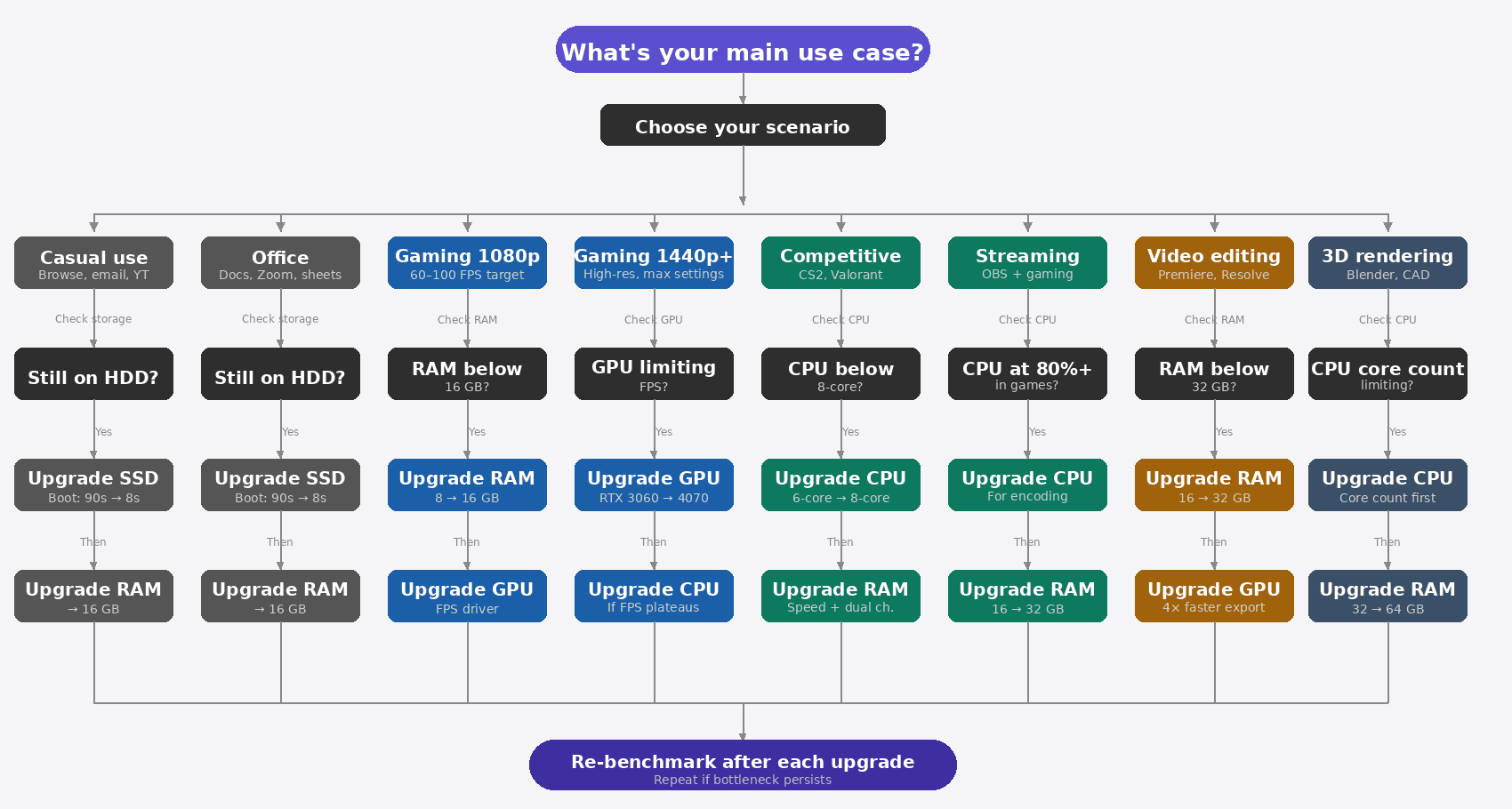
1Use-Case Priority Framework
Below is the full upgrade priority table by use case. "Skip" means that component is unlikely to be your bottleneck — not that it can never matter, but that money spent there is almost always better spent elsewhere first.
This table assumes you already have functional hardware in each category (i.e., you have some GPU, some RAM, etc.). If you're building from scratch, this order still applies, but context differs.
| Use Case | Upgrade 1st | Upgrade 2nd | Skip (and why) |
|---|---|---|---|
| Casual everyday useBrowsing, email, YouTube | SSDBoot drops from 90s → under 10s | RAM → 16GBStops tab-related slowdowns | GPU — YouTube/browsing doesn't stress GPU meaningfully. CPU — Overkill for this workload entirely. |
| Office & productivitySpreadsheets, documents, video calls | SSDFile open/save, OneDrive sync, app launch | RAM → 16GBEspecially if running Zoom + Excel + Chrome simultaneously | GPU — No rendering workload here. CPU — Modern mid-range CPUs handle this fine. |
| Gaming at 1080p (budget)60–100 FPS target | RAM → 16GBIf on 8GB — many games now require more | GPUPrimary FPS driver once RAM is adequate | CPU — At 1080p, GPU is almost always the limiter first. SSD — Good to have, but won't add FPS. |
| Gaming at 1440p or higherHigh-res, max settings | GPUResolution scales GPU demand sharply — a GPU upgrade from RTX 3060 class to RTX 4070 class typically moves 1440p from 45–60 FPS to 90–120 FPS in GPU-limited titles like Cyberpunk 2077 at high settings, roughly a 2× improvement in minimum FPS | CPUIf you've upgraded GPU and FPS still plateaus | RAM beyond 32GB — Games don't use it. SSD speed (NVMe vs SATA) — Marginal at best. |
| Competitive gamingCS2, Valorant — high FPS focus | CPUIn CS2 at 1080p low settings, upgrading from a 6-core/12-thread chip to an 8-core/16-thread chip moves CPU-limited scenarios from 180–220 FPS to 280–340 FPS — the difference between being CPU-capped and getting full value from a 360Hz monitor | RAM (speed/dual-channel)In CS2 and Valorant, faster RAM (DDR4-3600 vs. DDR4-2400) directly reduces CPU frame time, which is the actual limiter at 240+ FPS. The gain is typically 5–15% in CPU-bound titles | GPU beyond mid-range — You're targeting 240+ FPS at low settings, not ray tracing. |
| Content creation & video editingPremiere, DaVinci Resolve, After Effects | RAM → 32GBProxy files, multicam, large timelines all eat RAM | GPUGPU-accelerated export in DaVinci Resolve on a 10-minute 4K timeline typically drops from 18–22 minutes on CPU-only rendering to 4–6 minutes with a modern GPU handling the encode — a 4× reduction in wait time that compounds on every project | CPU alone — GPU acceleration has outpaced pure CPU rendering on most NLEs. |
| Streaming while gamingOBS + game simultaneously | CPUSoftware encoding (x264) is CPU-intensive on top of gaming load | RAM → 16–32GBOBS + game + browser adds up fast | GPU (for encoding) — NVENC/AMD VCE can substitute for CPU encoding if you already have a modern GPU. |
| 3D rendering & heavy creative workBlender, Cinema 4D, CAD | CPUCore count drives offline render times | RAM → 32–64GBComplex scenes don't fit in less | GPU (for final renders) — Unless you're doing GPU rendering (Cycles), GPU matters less than CPU for final output. |
| Student useCoding, research, light creative work | RAM → 16GBIDEs, browser tabs, and VMs eat RAM simultaneously | SSDCompile times and project load speed up noticeably | GPU — Unless doing ML/AI work, in which case a GPU matters enormously (flip priorities). |
Note on GPU for student ML/AI work: If you're training machine learning models locally, GPU priority flips immediately to first. CUDA core count is the bottleneck for training speed, and RAM/CPU become secondary — this is one of the few cases where GPU should come before everything else.
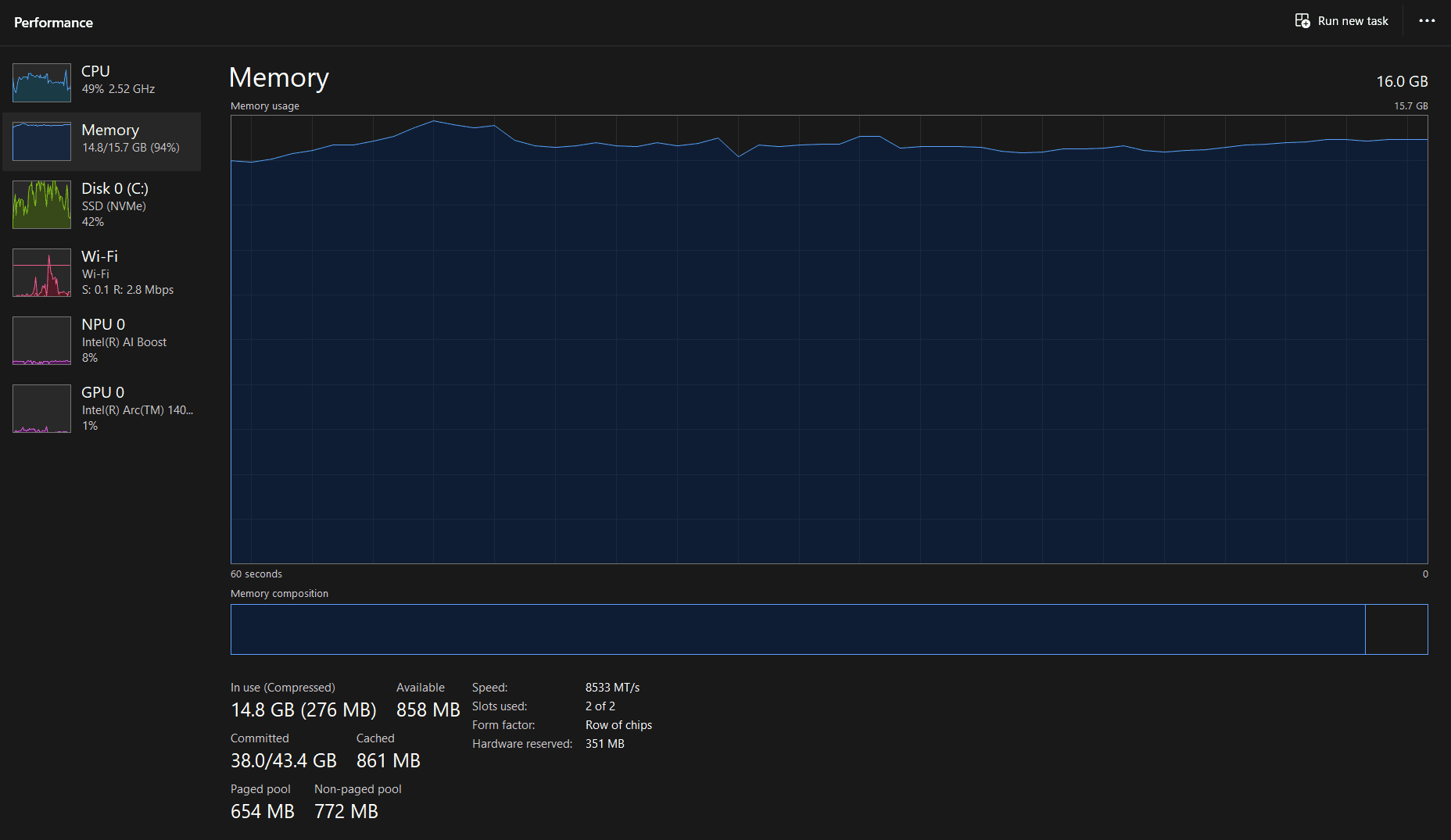
One thing I've noticed across dozens of upgrade conversations: people almost always underestimate how much a RAM shortage cascades into CPU problems. When RAM is at 94% utilization and you open one more tab, your OS starts paging to disk — and suddenly both RAM and disk usage spike simultaneously. I've seen people convinced their CPU needed replacing when the real problem was 8GB of RAM doing a job that needed 16GB. Going from 8GB to 16GB drops that utilization from 94% to around 55–60% under the same workload, which eliminates the tab-switching freezes without touching anything else.
2How Budget Changes the Upgrade Order
Budget is a constraint layer on top of the use-case framework above. When money is tight, the optimal upgrade sometimes has to wait because you simply can't afford it yet. Here's how priority shifts at three spending levels — these are ranges for the upgrade spend itself, not for buying a whole new PC. For specific product picks at each tier, see the PC upgrade buyer's guide.
Under $100, the decision is nearly always SSD or RAM — and the rule is simple: if you're still on a mechanical hard drive, an SSD is the single highest-impact upgrade you can make at any budget. An SSD drops boot time from 90+ seconds to under 10, and going from 8GB to 16GB RAM eliminates most tab-switching freezes. If you're already on an SSD with only 8GB of RAM, add RAM to 16GB instead. Nothing else is meaningfully upgradeable below $100; GPU and CPU improvements that actually matter start well above this price point. At $100, if you're genuinely unsure, buy the RAM first — it's the harder mistake to recover from if you guess wrong. If you're stuck between the two, the RAM vs SSD guide breaks it down further.
The $100–$300 range is where the decision opens up. A mid-range GPU upgrade, a 32GB RAM kit, or a fast NVMe SSD all land in this window. This is where the use-case table above matters most: gamers get a meaningful GPU upgrade here, content creators land at 32GB RAM comfortably, and office users are largely done at this budget. Track what you've completed with the PC upgrade checklist.
At $300 and above, CPU territory becomes realistic within your existing platform, and high-end GPU upgrades live here too. If SSD and RAM are already handled, this tier is almost entirely use-case driven: gamers toward GPU, renderers and streamers toward CPU, video editors toward GPU. At this budget, also ask whether a full platform migration beats upgrading — see the upgrade vs buy new guide for the math.
3What to Do When You Have Two Bottlenecks
Task Manager is showing both CPU and RAM near 100%. Or your GPU is maxed and your CPU is sitting at 90%. These dual-bottleneck situations are more common than most people realize, and the answer is almost never "upgrade both at once." Pick one. Here's how to pick the right one.
Scenario: RAM and CPU are both maxed out
Fix RAM first. When RAM is full, Windows starts using the storage drive as overflow memory — this is called paging, and it causes your CPU to spend cycles waiting for data from disk instead of processing anything. The result is that CPU usage looks artificially high when RAM is the actual constraint. Add RAM and CPU usage typically drops 20–40%. I've seen people order a CPU upgrade, cancel it, add 16GB of RAM instead, and report back that the problem was completely solved. Fix the RAM ceiling first, then reassess. If CPU is still spiking after that, then it's actually the CPU. See the RAM vs CPU upgrade guide for the detailed breakdown.
Scenario: GPU and CPU are both near 100% in games
This is a genuine dual bottleneck and it's more common than people expect. At 1080p, CPU tends to be the true limiter — the GPU has processed everything it needs to and is waiting for the CPU to feed it more work. At 1440p and above, the GPU is the real limiter because each frame requires dramatically more rendering work. Check your resolution: if you're gaming at 1080p with both components maxed, fix the CPU first. At 1440p or higher, fix the GPU first.
Scenario: System feels slow everywhere, both disk and RAM usage are high
SSD first, almost without exception. High disk usage when the system feels sluggish is usually paging — RAM overflow spilling onto the drive. An HDD handling that overflow is brutally slow; an SSD makes paging fast enough that what felt like a completely broken computer becomes a merely RAM-limited one. After the SSD install, recheck whether RAM still needs addressing. Boot time alone will tell you a lot — it should drop from 85–90 seconds on a mechanical drive to under 10 seconds on a modern NVMe.
4Symptom-to-Upgrade Quick Reference
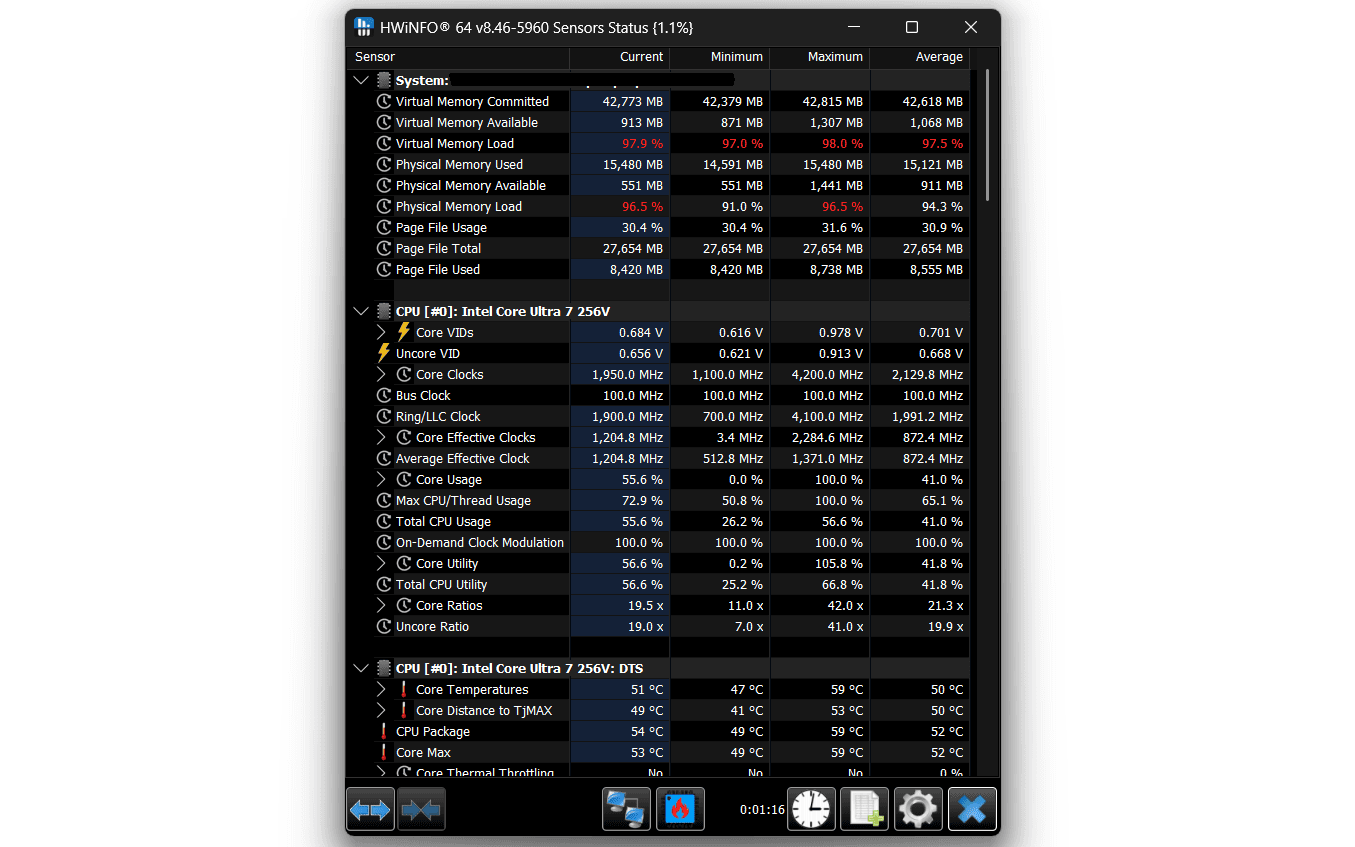
Match what your PC is doing to the most likely culprit. These are specific, observable symptoms — not generic "my PC feels slow." If your symptom isn't in this table, use this diagnostic guide to identify the bottleneck directly. For real-time hardware readings while you're testing, HWiNFO64 (free at hwinfo.com) gives you per-component utilization, temperatures, and memory usage simultaneously — far more useful than Task Manager alone. For a deeper benchmarking baseline before and after an upgrade, PassMark PerformanceTest (free at passmark.com) gives you scored, repeatable results you can compare to other systems; if you want frame-time granularity for gaming specifically, CapFrameX (free at capframex.com) is the more precise option.
| Symptom | Most Likely Cause | Upgrade |
|---|---|---|
| Slow boot — takes 2+ minutes to reach desktop | Mechanical HDD as boot drive | SSD (boot drive) |
| Slow boot even with SSD — Windows logo spins forever | Too many startup programs, or RAM too slow to initialize | Disable startup apps first; if that fails, RAM speed |
| PC feels fine at first, gets slower as the day goes on | RAM filling up from accumulated app usage | RAM capacity (more GB) |
| Freezing specifically when switching between apps | Paging: system is using disk as fake RAM | RAM first; if on HDD, SSD is a bandaid that helps |
| Texture pop-in in open-world games | VRAM (GPU memory) is too small for current texture settings | GPU with more VRAM |
| Stutters specifically at the start of a new area or level | Shader compilation stutter (GPU) or HDD seek time (storage) | SSD if on HDD; GPU if already on SSD (DirectStorage helps) |
| High FPS in menus but low FPS mid-game | GPU struggling under actual rendering load | GPU |
| FPS is fine but feels jerky / inconsistent | Frame time variance — often RAM in single-channel or slow mode | RAM (enable dual-channel or increase speed) |
| Games stutter in multiplayer but not singleplayer | CPU handling game logic + network simultaneously | CPU |
| Fan runs at full speed during light tasks (YouTube, browsing) | CPU thermal throttling — not an upgrade issue | Clean dust / replace thermal paste before any upgrade |
| Video export takes 10x longer than expected | Software encoding without GPU acceleration enabled | Enable GPU acceleration first; if already on, upgrade GPU |
| Browser with 20+ tabs makes everything slow | RAM exhausted — Chrome and Edge are RAM-heavy | RAM to 16GB minimum, 32GB if this is persistent |
| Blender/3D viewport is laggy but final renders are fine | GPU not fast enough for real-time viewport rendering | GPU |
| Blender renders are slow (offline, not viewport) | CPU core count limiting CPU-based render | CPU (or switch to GPU rendering in render settings) |
| Stream looks fine locally but drops frames when broadcasting | CPU at capacity with game + encoding simultaneously | CPU; or switch to NVENC/AMD VCE if you have a modern GPU |
| Large file copies within same drive are very slow | HDD mechanical read/write speeds | SSD |
| PC won't post / won't boot at all | Not a performance upgrade issue — hardware failure | Diagnose before upgrading anything |
5The Most Common Upgrade Mistakes (And What They Cost You)
The article's entire premise is that upgrade order matters — and the clearest evidence of that is what happens when people get it wrong. Here are the five specific failure patterns I've seen repeatedly, with what each one actually costs.
1. Buying a GPU when the bottleneck is RAM
Symptom: the PC feels sluggish everywhere — not just in games, but in the browser, when switching apps, when opening files. Task Manager shows RAM sitting at 85%+ consistently. The mistake is blaming the GPU because gaming is where the slowdown feels most obvious. The result is a $300 GPU purchase followed by a nearly identical gaming experience, because the system is still paging to disk every time a game loads a new asset. The actual fix is a $50 RAM kit that would have solved 80% of the problem. The GPU upgrade wasn't wasted entirely, but it delivered maybe 15% of what the person expected.
2. Upgrading the CPU when the actual issue is RAM paging
This is the most expensive single misdiagnosis I've seen. When RAM is full and the system is paging, CPU usage reads artificially high — the processor is spending cycles waiting for data from disk rather than actually computing anything. The symptom looks like a CPU problem. The fix is RAM. A $350 CPU upgrade on a paging system will produce 10–15% improvement. A $60 RAM kit produces 40–60% improvement and costs one-sixth as much. I've seen people order a CPU upgrade, cancel it after reading more, add 16GB of RAM instead, and report back that the PC felt like a different machine — without the CPU ever being the problem.
3. Installing an SSD without migrating the OS
This one is almost funny until it happens to you. User buys a 1TB SSD, plugs it in as a secondary drive, and boots from the old HDD anyway. The PC still boots in 90 seconds. The SSD sits there full of downloaded games loading from the old drive's Windows installation. The fix is to make the SSD the boot drive — which requires either a clean Windows install or a full drive clone using free software like Macrium Reflect. This happens more than it should, and the symptom is confusing: the SSD appears in Windows, things feel slightly faster for file storage, but the main slowdown is unchanged.
4. Upgrading to a GPU that's immediately bottlenecked by the CPU
Pairing an RTX 4080 with a 6th-gen Intel Core i5 at 1080p. The user gets 20% more FPS instead of the 100% they expected. The GPU is working — it's doing its job — but the CPU cannot feed it frames fast enough to let it run at full capacity. This is a real bottleneck and it's expensive to create. The rule of thumb: don't skip more than two GPU generations ahead of your CPU on the same platform at 1080p. At 1440p and above, the GPU has more headroom because it's doing more rendering work per frame regardless of CPU speed — which is one reason higher resolutions are more forgiving of CPU age.
5. Adding RAM in a configuration that doesn't enable dual-channel
Buying one 16GB stick instead of 2×8GB. The system shows 16GB in Windows, Task Manager confirms it, everything looks correct — but memory bandwidth is effectively halved compared to a matched dual-channel pair. At the same total RAM capacity, dual-channel typically adds 10–20% FPS in CPU-bound scenarios like competitive games. In CS2 and Valorant, this is a measurable, repeatable difference. Always buy RAM in matched pairs and install them in the correct slots (usually slots 2 and 4, not 1 and 2 — check your motherboard manual). A $70 2×8GB kit outperforms a $65 single 16GB stick in every CPU-limited scenario.
6When Upgrade Order Doesn't Matter: The Platform Migration Case
Everything above assumes you're upgrading within a functional platform. But if your CPU is so old that replacing it requires a new motherboard, and that motherboard requires new RAM, then "what to upgrade first" is the wrong question entirely — you're doing a full platform migration and the order stops mattering because you're replacing everything in that tier simultaneously.
This situation applies when you're on Intel 6th or 7th generation (Skylake/Kaby Lake) or older, AMD Ryzen 1000 series, or any platform where a CPU upgrade forces a motherboard swap. The GPU and SSD priority framework from above still applies completely — those are platform-agnostic upgrades you can carry over to any new build. But for the CPU/motherboard/RAM trio, the answer is not "upgrade one, then the other" — it's "either upgrade all three together or price out a new system."
I've run this calculation for maybe a dozen people over the past two years, and the crossover point is usually around $400–500 for a CPU + motherboard + RAM bundle. A recent example: someone on an i7-7700K was looking at a $220 used i9-9900K on the same Z370 platform, then discovered DDR5 kits for a modern platform had dropped to $80 for 32GB — suddenly the full migration to a current-gen Core i5 with a new board and DDR5 RAM came out to $480, and the used i9 upgrade came out to $220 with zero headroom for future upgrades. They went with the migration. Below $400 in platform costs, upgrading within the existing socket usually wins. Above it, you're most of the way to a capable prebuilt.
Use the should I upgrade or buy new guide to determine which path makes financial sense for your specific platform.
Quick test: If your CPU was released before 2017, look up whether a drop-in upgrade exists for your socket. If the answer is no — or if the best available drop-in upgrade costs more than $150 on the used market — start calculating the full migration cost instead.
Frequently Asked Questions
Does upgrade order actually matter, or can I just buy whatever?
Order matters a lot. Buying a new GPU when your actual bottleneck is 8GB of RAM running out will give you near-zero improvement in gaming. The goal is to fix the component that's actually limiting you first — everything else is wasted money until that constraint is removed.
I game and do video editing — do I prioritize GPU or CPU?
GPU comes first for most people doing both. Export times in Premiere and DaVinci Resolve scale heavily with GPU on modern hardware. CPU becomes the priority when exports are already fast but timeline playback is laggy — that's a CPU and RAM problem, not a GPU one.
My PC is 5 years old — should I upgrade one part or just replace everything?
It depends on which generation. Intel 8th–12th gen or AMD Ryzen 2000–5000 still support targeted upgrades that make sense financially. Intel 6th/7th gen or AMD Ryzen 1000 series, and you're likely better off with a full platform migration. Check the section above and our upgrade vs buy new guide.
Should I configure maximum specs now, or buy modest and upgrade later?
It depends on how fast the platform is moving. For GPU and RAM, buying modest and upgrading later usually wins — prices drop and new options appear within 12–18 months, and you're not paying a premium for headroom you may not need yet. For CPU and motherboard, it's the opposite: platform changes (new sockets, new RAM standards) make future upgrades harder or impossible without replacing everything, so if you can afford a stronger CPU/board now, that's the one place paying upfront tends to pay off. See the platform migration section above for the cost math.
I bought a high-end GPU but my FPS barely changed — what happened?
Your CPU is almost certainly bottlenecking the GPU. At 1080p especially, a very old CPU cannot feed frames to a modern GPU fast enough to let it run at full capacity. You'll see 15–20% FPS gains instead of the 80–100% you expected. This is one of the five most common upgrade mistakes — see the Common Mistakes section above for the full breakdown.
My PC feels slow but Task Manager never shows 100% on anything — what's wrong?
Almost always storage. An HDD that's heavily fragmented or near full capacity will slow everything down without maxing out usage percentages — it reads slowly and causes constant micro-stutters. The fix is an SSD. This is the single most commonly misdiagnosed PC slowdown I've seen.
Should I upgrade RAM or GPU first for 1080p gaming?
If you have 8GB of RAM, upgrade RAM first — most modern games now require more than 8GB, and you'll see stutter and slowdowns regardless of GPU quality. Once you're at 16GB, the GPU becomes the primary lever for higher FPS at 1080p.
I stream and game at the same time — which component breaks first?
CPU breaks first in most streaming setups, especially with software encoding (x264). Streaming adds roughly 20–30% CPU load on top of gaming. If your CPU is already at 80%+ during games alone, adding a stream will cause dropped frames and stutters before your GPU ever becomes the issue.
What to Read Next
You know what to upgrade first. Here are the five most useful next steps, depending on where you are in the process.
- AM4 to AM5: Is the Platform Switch Worth It? → — If DDR5 prices are giving you pause, this breakdown shows exactly where the money goes and whether it makes sense for your setup.
- Diagnose Your PC Bottleneck — Not sure what's actually slowing you down? Find out which component to target before spending anything.
- PC Upgrade Buyer's Guide — Specific product picks, current prices, and benchmark data for every component.
- How to Upgrade Your PC — Step-by-step installation guide for every component, once you've decided what to buy.
- Upgrade or Buy New? — When the math on upgrading stops making sense and what to do instead.
- Is the Ryzen 7 9800X3D Worth It for Gaming? → — Once you've confirmed the CPU is the next upgrade, this goes deep on whether the 9800X3D makes sense for your specific starting point.