What Should I Upgrade on My PC?How to find your real bottleneck using free tools — before spending anything
I've watched people spend $300 on a GPU upgrade that did absolutely nothing for their PC, because the real problem was an 8-year-old hard drive running at 100% utilization. The GPU was fine. The storage was the bottleneck — and five minutes with Task Manager would have told them that before they spent a cent.
This guide walks through the exact tools I use to diagnose any slow PC: Task Manager, CPU-Z, MSI Afterburner, and HWMonitor. By the end, you'll have a specific utilization reading that points at one component — and that's the component you upgrade. If you already know which part is the problem and just want the recommended order, head to the what to upgrade first guide instead.
What This Guide Covers
1. Diagnose Before You Spend
Your PC is slow because one specific component can't keep up — not because every component is equally tired. Upgrading the wrong part doesn't just waste money; it leaves your PC feeling exactly as slow as before, because you never fixed the actual constraint. The person who upgrades from 8GB to 16GB of RAM and sees zero improvement almost always had a hard drive bottleneck the whole time.
The diagnostic process takes 10–15 minutes and requires no money and no special hardware knowledge. You're looking for one thing: which component hits 100% (or close to it) when your PC feels slow. That component is your bottleneck. The rest of this guide shows you how to find it.
2. Tool 1: Windows Task Manager
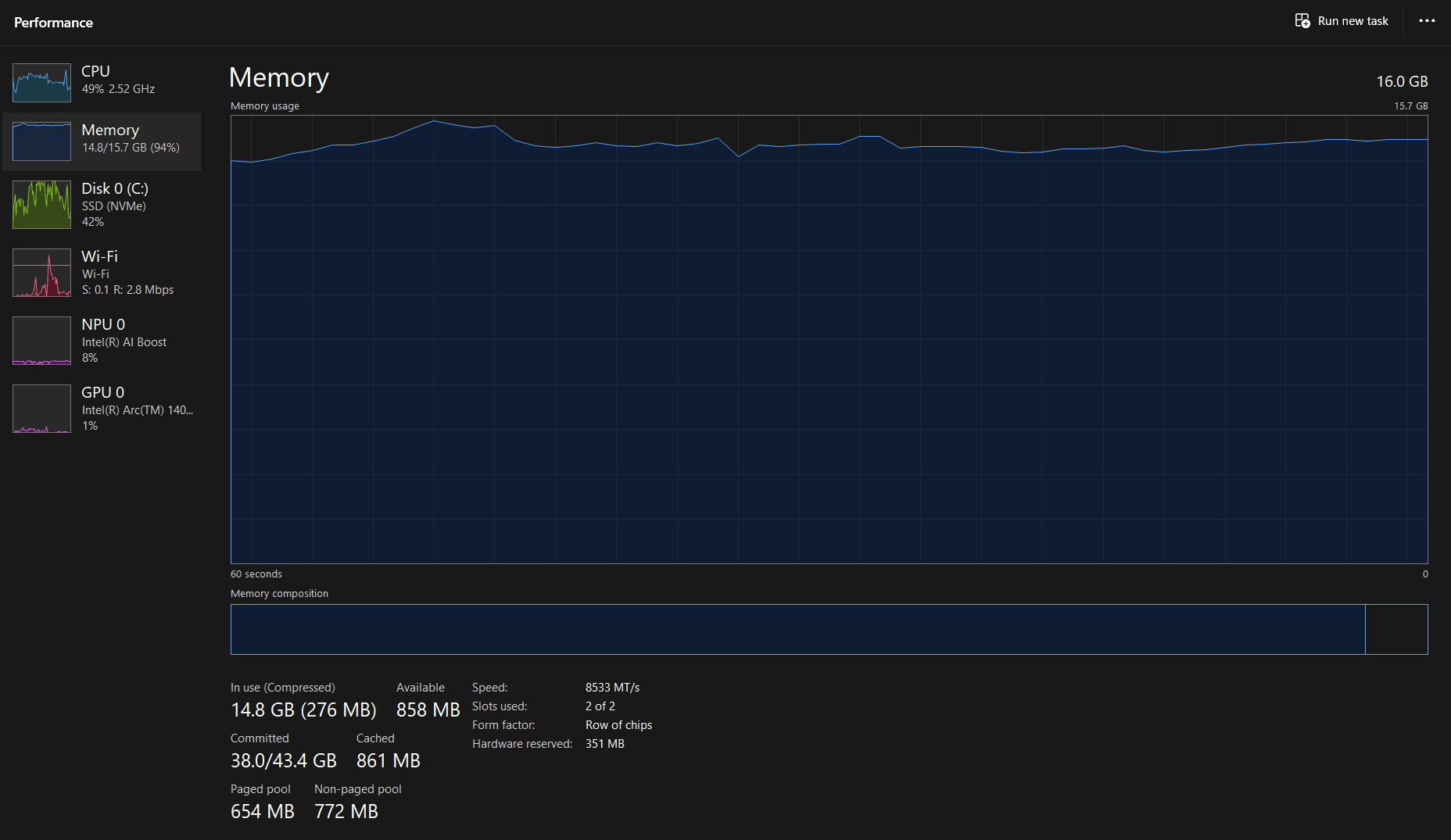
Task Manager is the first tool to open. Press Ctrl + Shift + Esc, then click the Performance tab. You'll see meters for CPU, Memory, Disk, and GPU. The critical step that most people skip: run this while actually doing whatever makes your PC feel slow. If browsing causes slowness, have Chrome open with your usual tabs. If it's gaming, you'll need MSI Afterburner instead (covered in section 4). Here's what each meter tells you.
The Disk tab — the most missed bottleneck
Click Disk 0 (or whichever disk is listed) in the left panel. If the utilization graph is sitting at or near 100% while your PC struggles, you have a storage bottleneck. This is overwhelmingly the most common cause of PC slowness that people misattribute to CPU or RAM. A mechanical hard drive (HDD) under load will peg at 100% constantly — and the symptom it produces is a PC that freezes for 3–5 seconds at random intervals, slow app launches (10+ seconds for Chrome), and sluggish boot times of 2+ minutes. Replacing that drive with an NVMe SSD drops boot time from around 85–90 seconds to under 10.
The Memory tab — the 85% threshold
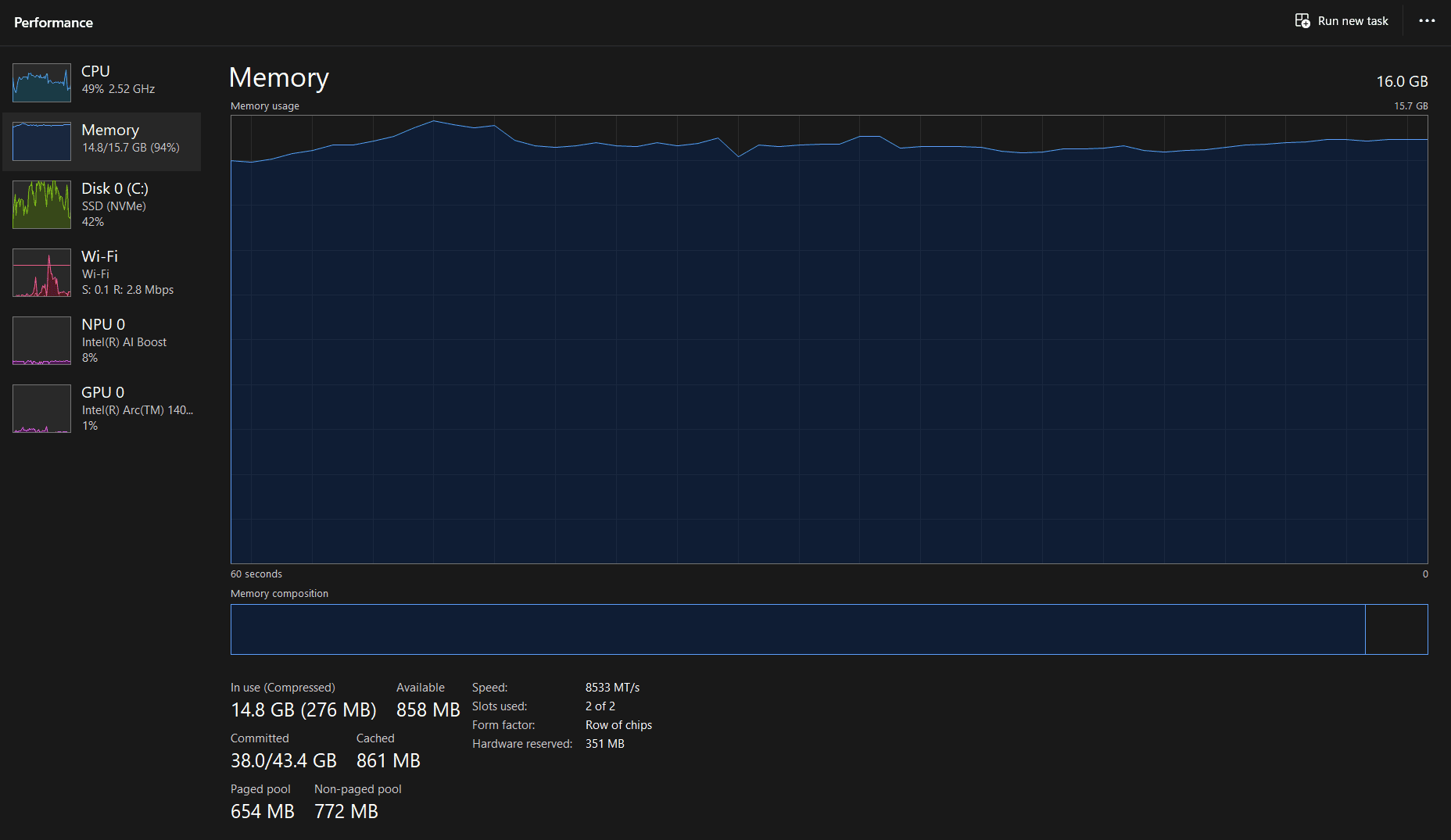
Click Memory in the left panel. Look at the utilization percentage in the top-right of the graph. If you're sitting at 85% or above with a normal workload — a browser, some tabs, maybe Spotify — RAM is your bottleneck. A machine with 8GB running Windows 11 with Chrome open typically shows 90–94% utilization before you've done anything demanding. That leaves almost no headroom, which is why the system has to swap data to disk constantly and everything feels sluggish. Going from 8GB to 16GB drops that to roughly 50–60% under the same workload. Also check Slots used at the bottom — if it says "2 of 4," you have open slots and adding RAM is straightforward.
The CPU tab
CPU at 90%+ during light tasks like browsing or document editing is unusual and worth investigating — but check HWMonitor temperatures first. A CPU hitting 95°C is throttling itself, and that looks identical to an aging chip. Temperature fix is $5 and 30 minutes; CPU replacement is $150+. The most common CPU-bottleneck symptom I see isn't slowness across the board — it's a specific app that maxes out one core and makes the whole system unresponsive for 5–10 seconds. If that's what you're experiencing and temps are fine, you have a CPU bottleneck. CPU bottlenecks are far less common than storage or RAM bottlenecks for general PC use.
The GPU tab (Windows 10 and 11)
Task Manager's GPU tab shows utilization percentage but nothing else. For gaming, that's not enough — you need VRAM usage and frame timing, and Task Manager doesn't show either. Skip it for gaming diagnosis and go straight to MSI Afterburner.
3. Tool 2: CPU-Z (RAM diagnosis)
Task Manager tells you if your RAM is being used too heavily. CPU-Z tells you if your RAM is even running at its rated speed. I run CPU-Z before every RAM recommendation I make, without exception — because I've told probably a dozen people about this situation: they buy a DDR5-6000 kit, install it, and it runs at 4800MHz because XMP was never enabled. That's free performance being left on the table.
Download CPU-Z from cpuid.com (free, no installer required if you grab the portable version). Open it and click the Memory tab.
What to look for in the Memory tab
The two critical fields: Type (DDR4 or DDR5) and DRAM Frequency. DDR5 reports half its actual speed here — so DDR5-6000 will show as 3000MHz. DDR4 reports actual speed, so DDR4-3200 shows as 1600MHz. Channels tells you if you're running dual or single channel. Dual channel gives you roughly 10–15% more memory bandwidth — if you have two sticks installed in the wrong slots, you might be running single channel without knowing it. Check your motherboard manual for the correct slots (usually A2 and B2, not A1 and A2).
If DRAM Frequency is lower than what your kit is rated for, you need to enable XMP (Intel) or EXPO (AMD) in your BIOS. Reboot, enter BIOS (Delete or F2 on most boards), find the XMP/EXPO setting — usually under a menu called "AI Overclocking" or "DRAM Timing Configuration" — enable it, save and exit. Free performance, no parts needed.
The SPD tab shows exactly what's physically installed in each slot: manufacturer, part number, and capacity. Useful when you want to know precisely what you have before buying more.
4. Tool 3: MSI Afterburner (gaming diagnosis)
If your slowness is low FPS or stuttering in games, Task Manager isn't enough. You need to see CPU and GPU utilization simultaneously while you're inside the game — not on the Windows desktop where conditions are completely different. That's what MSI Afterburner's in-game overlay does. Download MSI Afterburner and install it along with RivaTuner Statistics Server (the installer prompts you for both). In Afterburner settings, go to Monitoring, enable GPU Usage, CPU Usage, GPU Memory Usage, and Frametime, then tick "Show in On-Screen Display" for each. Launch a game, play a demanding scene for at least five minutes, and read the numbers.
GPU at 95–100%, CPU below 70% is a GPU bottleneck. The graphics card is doing everything it can and still can't produce the frames you want. A GPU upgrade will directly increase FPS here.
CPU at 90–100%, GPU below 65% is a CPU bottleneck. The processor can't feed frames fast enough for the GPU to render them. Check temperatures first before concluding the CPU needs replacing — thermal throttle produces the exact same symptom (covered in section 5).
Both below 80% with FPS still low — in Afterburner, check GPU Memory Usage. If it's at or above 95% of your card's VRAM (e.g., 7.8GB of 8GB), VRAM saturation is causing the stutter even though overall GPU load looks normal. The only fix is a GPU with more VRAM. If VRAM is fine too, check GPU temperature for throttling.
Non-gaming PC? Skip this tool
MSI Afterburner is only useful for gaming diagnosis. If your PC isn't used for gaming, Task Manager and CPU-Z cover everything you need. A GPU upgrade won't improve general PC speed at all — that's always storage or RAM.
5. The Temperature Check (HWMonitor)
This is the diagnostic step that catches the most expensive mistakes. Thermal throttling — when a CPU or GPU reduces its own clock speed to avoid overheating — produces symptoms that look exactly like an aging or underpowered component. I had a machine running at 100% fan speed during YouTube playback for a month before realizing the CPU thermal paste had dried out completely. Reapplying it dropped load temps by 22°C and the fans went silent. The CPU didn't need replacing. It needed $5 of thermal paste and 30 minutes of work.
Download HWMonitor from cpuid.com (same developer as CPU-Z, also free). Open it, then run whatever task makes your PC feel slow for 5–10 minutes. Look at the Max temperature column when you're done — that's the peak the component hit under load.
CPU hitting 95°C or above under normal use means it's thermal throttling. The fix is cleaning dust from the heatsink and replacing thermal paste — not upgrading the CPU. GPU hitting 83–87°C on NVIDIA or 80–85°C on AMD during gaming is the same story; cleaning the card's heatsink can recover meaningful performance for free. If temperatures are fine and nothing is pegged above 80%, this is a software problem, not a hardware one. Disable startup programs first (Task Manager → Startup tab), run a malware scan, then check the how-to-speed-up-slow-pc guide for a step-by-step cleanup before spending a cent on parts.
6. The Diagnostic Decision Tree
Once you have readings from the tools above, the upgrade decision is usually straightforward. Here's how to map what you see to what to do.
| What you see in the tools | The problem | The fix |
|---|---|---|
| Task Manager Disk at 100% consistently | Storage bottleneck (almost always an HDD) | SSD upgrade |
| Task Manager Memory above 85% at rest | RAM bottleneck | RAM upgrade |
| CPU-Z shows RAM below rated speed | XMP/EXPO not enabled | Enable XMP/EXPO in BIOS (free) |
| Afterburner: GPU at 95%+ during gaming | GPU bottleneck | GPU upgrade |
| Afterburner: CPU at 90%+, GPU below 65% | CPU bottleneck (check temps first) | CPU upgrade (after ruling out thermal throttle) |
| HWMonitor: CPU/GPU temps above throttle threshold | Thermal throttle | Clean dust, repaste CPU ($5, 30 min) |
| Everything below 80%, temps fine, still slow | Software problem, not hardware | Software fixes first |
7. Common Diagnosis Mistakes
Mistake 1: Only checking the CPU tab and ignoring Disk
Most people open Task Manager and immediately look at CPU utilization, because CPU is the brain and it feels like the obvious culprit. But CPU is rarely the bottleneck for general PC slowness. The Disk tab is the one to click first, and it's the one most people never open. HDD at 100% is responsible for the majority of "my PC just feels slow" complaints I see — and every one of them would have been solved faster if the person had looked at the Disk tab first.
Mistake 2: Running the check while the PC is idle
Task Manager at idle shows everything comfortably low. That tells you nothing. You have to reproduce the condition that causes the slowness — have the same apps open, do the same tasks — and read the meters while it's happening. I've seen people check their Task Manager while sitting at a clean desktop and conclude "looks fine" while their disk is at 100% the moment they open Chrome. The check is only valid when you're actually replicating the slow scenario.
Mistake 3: Misreading thermal throttle as a hardware bottleneck
A CPU or GPU that's throttling because of heat looks exactly like one that's simply too old or too slow. The performance drop is real — but the cause is dust and dried thermal paste, not an aged chip. Before concluding your CPU needs replacing, always check HWMonitor temps under load. If you're seeing 95°C+ on the CPU, try cleaning and repasting first. I've personally seen this mistake cost people $200+ on a CPU upgrade that did nothing, because the old one throttled itself into mediocrity every time it got warm.
Mistake 4: Using MSI Afterburner numbers from the desktop instead of in-game
GPU utilization at the Windows desktop is close to 0% by design. Checking Afterburner before launching a game and using those numbers is meaningless. The overlay must be active and visible while you're playing a demanding scene — not the main menu, not the loading screen, but actual gameplay where the bottleneck shows up.
8. FAQ
How do I know what to upgrade on my PC without spending money first?
Open Task Manager (Ctrl+Shift+Esc) and go to the Performance tab. Check Disk, Memory, CPU, and GPU utilization while doing whatever makes your PC feel slow. Disk at 100% means SSD. Memory consistently above 85% means RAM. GPU at 95%+ while gaming means graphics card. This takes five minutes and costs nothing.
My PC feels slow but Task Manager shows everything below 80% — what's going on?
Two likely causes: thermal throttling or a software problem. Download HWMonitor and check CPU and GPU temperatures under load. If your CPU is hitting 95°C+, it's throttling itself to avoid damage — that looks identical to a slow CPU but the fix is cleaning dust and replacing thermal paste, not buying new hardware. If temps are fine, check the how-to-speed-up-slow-pc guide for software fixes before spending anything.
Is Task Manager accurate enough to diagnose bottlenecks, or do I need special software?
For most people, Task Manager is accurate enough. The Disk, Memory, and CPU tabs give you what you need for general use. The one gap is gaming diagnosis — Task Manager's GPU tab exists but doesn't show VRAM usage or frame timing. For gaming, MSI Afterburner with the in-game overlay is the better tool because it shows CPU and GPU utilization simultaneously while you're actually in the game.
CPU-Z shows my RAM running slower than it's rated for — is that a problem?
Yes, and it's a free fix. If your DDR5-6000 kit shows 3000MHz in CPU-Z (DDR5 reports half-frequency), XMP or EXPO isn't enabled in your BIOS. Reboot, enter BIOS (usually Delete or F2), find the XMP or EXPO setting, enable it, save and restart. That gets your RAM running at its rated speed — a 10–15% performance improvement for zero cost.
My GPU is at 99% while gaming — does that always mean I need a new GPU?
Not always. First check GPU temperature in HWMonitor or the Afterburner overlay. If it's hitting 83–87°C (NVIDIA) or 80–85°C (AMD), the card is thermal throttling — cleaning dust from the card's heatsink can recover 10–15% performance for free. If temps are fine and the card is genuinely maxed with no throttling, then a GPU upgrade will directly increase your FPS.
9. What to Read Next
Once you've identified your bottleneck, these guides cover the next step. If your Disk tab is the problem, the SSD upgrade guide covers NVMe vs SATA, M.2 slot compatibility, and the cloning vs reinstall decision. If RAM is the issue, the RAM upgrade guide explains DDR4 vs DDR5 identification, dual channel slot placement, and what to avoid when buying. For gamers, the RAM vs GPU guide helps you decide between the two most common gaming upgrades. If you want a prioritized list without the diagnostic steps, the what to upgrade first guide maps symptoms directly to upgrades.