PC Upgrade Buyer's Guide 2026Real Prices, Benchmark Context & Tier Picks for Every Budget
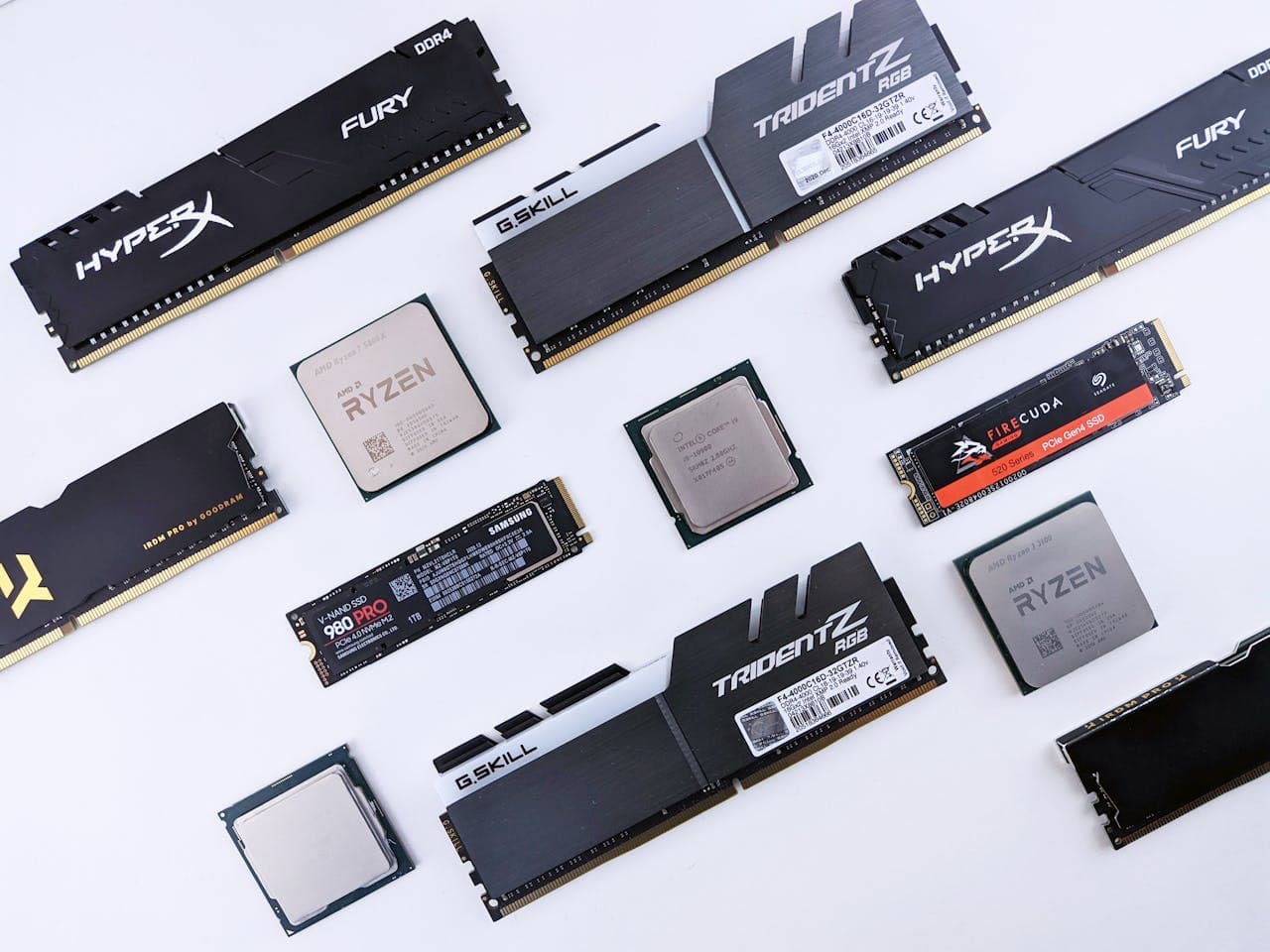
I've watched too many people build their upgrade budget around MSRP numbers that don't exist at any retailer, or buy a PCIe Gen 5 SSD for a gaming PC that will never notice the difference. Most PC upgrade guides tell you what to buy without telling you why — or being honest about what the money actually gets you in 2026's genuinely strange market. This one is different.
Every tier pick here is grounded in real street pricing and benchmark data from independent reviewers — GamersNexus, Tom's Hardware, TechSpot. I'm not calling the RTX 5070 "great value" when the RX 9070 XT beats it in rasterization at a lower price. And I'm not going to soft-pedal how badly DDR5 pricing has moved. You deserve to know what you're actually walking into before you spend anything.
If you haven't yet figured out which component is your bottleneck — GPU, CPU, RAM, or SSD — start with our diagnostic guide: What Should I Upgrade On My PC →. This guide picks up after that decision has been made.
And if you already know exactly which CPU you're upgrading from, our CPU upgrade guide has a direct chip-to-chip recommendation table.
What This Guide Covers
1. The 2026 Market Reality Check
Before looking at any specific part, you need to understand the environment you're shopping in. Three forces are reshaping PC upgrade costs in 2026 in ways that don't show up in most guides written even six months ago. I've been tracking this market closely, and the RAM situation in particular is worse than most people realize until they actually go to buy.
⚠️ RAM & SSD: A Genuine Shortage, Not a Blip
Samsung, SK Hynix, and Micron — who together control over 90% of global DRAM output — have redirected capacity toward High Bandwidth Memory (HBM) for AI accelerators. TrendForce reported conventional DRAM contract prices surged roughly 90–95% quarter-over-quarter in Q1 2026. A 32GB DDR5-6000 kit that cost $80–$120 in mid-2025 now runs $310–$410+. Gartner and Counterpoint Research do not project meaningful relief before 2027–2028. Budget accordingly — this is not a temporary spike.
GPUs tell a different story. NVIDIA's RTX 5090 is trading at $3,500–$4,000+ despite a $2,000 MSRP, and high-end cards are heavily affected by AI demand and limited supply. But the mid-range is more reasonable: the RX 9070 XT and RTX 5070 are closer to MSRP, and the RX 9070 XT in particular is the best performance-per-dollar card of this generation. Tom's Hardware's GPU hierarchy confirms GPU prices have risen far less dramatically than RAM — a genuine silver lining.
CPU prices have stayed relatively stable. The Ryzen 7 9800X3D sits at ~$480, close to its launch MSRP. AMD's AM5 platform has confirmed socket support through at least Zen 6, which Intel's LGA 1851 currently can't match. If your bottleneck is GPU or CPU, the upgrade math is straightforward right now. If it's RAM, buy when you find stock near these prices and move quickly.
2. How to Read This Guide
Each component section uses three tiers: Budget, Mid-Range, and High-End. These describe price brackets, not quality floors — the budget tier in 2026 beats what the high-end tier delivered three years ago.
For every tier I surface four things that most guides skip. First, real street price — not MSRP. Where the two diverge significantly (especially for high-end GPUs), I flag it explicitly. Second, the benchmark source — Tom's Hardware, GamersNexus, TechSpot — so you can verify independently rather than take my word for it. Third, the actual use case gap: what the high-end tier gives you that the mid-range doesn't, in terms you can feel rather than spec sheet deltas. And fourth, when to skip the tier entirely, because at current prices some upgrades genuinely aren't worth doing. I'll say so directly when that's the case.
For the physical installation steps for any of these components, see our step-by-step How to Upgrade Your PC guide →
3. GPU Tiers & Benchmarks
The GPU is the primary performance driver for gaming. If your existing card is four or more years old, this is almost certainly your highest-impact upgrade. In 2026, two architecture generations define the market: NVIDIA's RTX 50-series (Blackwell) and AMD's RDNA 4 (RX 9000 series). Both represent meaningful performance improvements over the RTX 40-series and RX 7000-series — 20–35% gains in rasterization depending on workload.
The headline story right now: AMD's RX 9070 XT is outperforming the RTX 5070 in rasterization in most tested titles while carrying 16GB GDDR6 versus 12GB GDDR7. GamersNexus benchmarks show the RX 9070 XT leading the RTX 5070 by 0–24% depending on the title, with the RTX 5070 winning primarily in ray tracing workloads and multi-frame generation quality. Tom's Hardware calls the RX 9070 XT their most well-rounded GPU recommendation in years — which is a stronger statement than it sounds coming from them, given they've historically leaned NVIDIA.
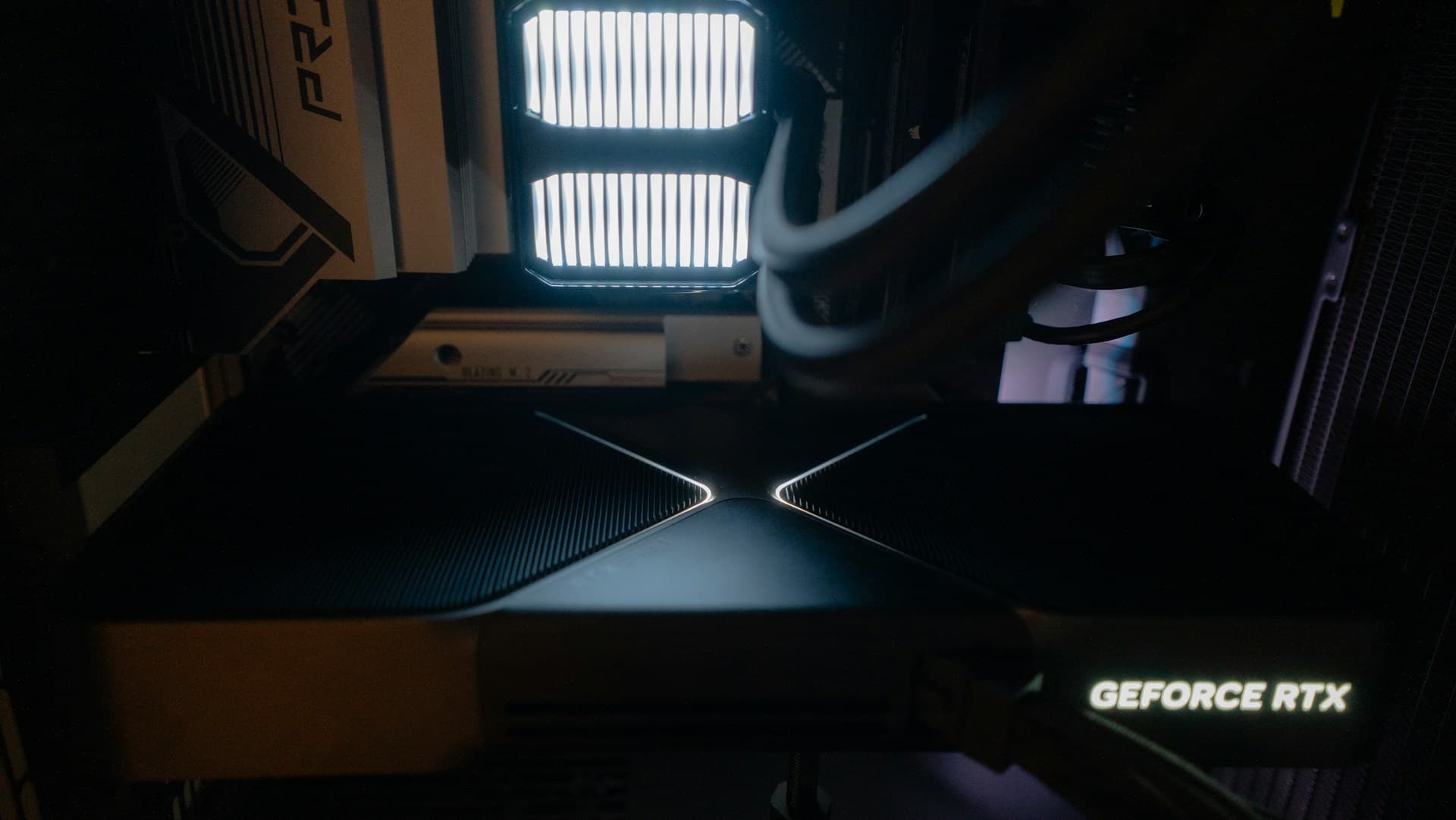
Budget Tier — 1080p Gaming (~$220–$300)
The budget GPU tier in 2026 is anchored by the Intel Arc B580 — and it's a genuine anomaly at its price point. For around $240 street, you get 16GB of GDDR6 at a time when mid-range cards routinely ship with 12GB. It handles 1080p high settings in most current AAA titles and stretches to 1440p at reduced settings without buckling. The runner-up is the RX 9060 XT at ~$280, but get the 16GB variant specifically — the 8GB version is a meaningful step down and will show its age within two years.
The honest performance gap versus the mid-range is 35–45% average FPS. At 1080p with no plans to go higher, this tier is genuinely sufficient. If 1440p is your target, stretch to mid-range. And if you own an RTX 2070, RX 6700 XT, or anything newer, skip this tier — the delta doesn't justify the spend.
Mid-Range Tier — 1440p Gaming (~$450–$650) — Best Value
Top pick: AMD Radeon RX 9070 XT 16GB (~$600 street). Alternative: NVIDIA RTX 5070 12GB (~$549–$610 street).
The RX 9070 XT leads the RTX 5070 in rasterization across most tested games — by margins ranging from statistical noise in some titles up to 24% in Dragon's Dogma 2 at 4K (GamersNexus). TechSpot's 57-game suite finds the RX 9070 XT consistently ahead in most titles after recent driver updates. The RTX 5070 counters with better ray tracing, DLSS 4 Multi Frame Generation, and NVIDIA's NVENC encoder — advantages that genuinely matter if you stream or play path-traced games heavily.
The VRAM gap is worth taking seriously. 16GB GDDR6 on the RX 9070 XT versus 12GB GDDR7 on the RTX 5070 isn't a problem at 1440p today, but several 2025–2026 titles already saturate 12GB at 4K ultra, and this will get worse as next-gen console ports raise texture budgets. If you're gaming at 1440p, don't worry about it yet. If 4K is on your roadmap, factor it in now.
My call: if you stream on Twitch, play path-traced games heavily, or you're deep in the NVIDIA ecosystem, take the RTX 5070. If you want the most FPS per dollar at 1440p and the most VRAM headroom, the RX 9070 XT is the right choice and it's not particularly close.
High-End Tier — 4K Gaming (~$750–$1,100+)
Top pick: NVIDIA RTX 5070 Ti 16GB (~$750–$850 street). Step-up: NVIDIA RTX 5080 16GB (~$999 MSRP, ~$1,050+ street).
The RTX 5070 Ti outperforms the RX 9070 XT by about 5% average in TechSpot's suite while costing significantly more — Tom's Hardware notes RTX 5070 Ti cards are generally selling for ~$300 more than RX 9070 XTs. The RTX 5080 delivers native 4K at 80–110 FPS in most 2026 titles with ray tracing off, and holds 60–80 FPS with RT enabled via DLSS Quality mode.
One important note before you build a budget around this tier: street prices are substantially above MSRP right now. The RTX 5090 is trading at $3,500–$4,000+ against a $2,000 MSRP. Check actual in-stock pricing before committing to any high-end NVIDIA card. This tier makes sense for 4K monitor owners who don't want to rely on upscaling as their primary resolution, or creators doing 3D rendering and AI inference where CUDA cores and VRAM directly affect output speed.
→ For compatibility checks (PSU wattage, case clearance, power connectors) and the full installation walkthrough, see our GPU Upgrade guide.
4. CPU Tiers & Benchmarks
CPUs age slower than GPUs. A Ryzen 5 5600X or Core i7-12700K from 2021–2022 still won't bottleneck a mid-range GPU at 1440p in most titles — I'm still running a Ryzen 5 5600X on a secondary rig and it holds up fine. The diagnostic question before spending anything here: open Task Manager during your heaviest workload and look at the CPU vs. GPU utilization numbers. If the GPU is at 98% and the CPU is at 45%, the CPU is not your problem. If CPU hits 95%+ and GPU is sitting below 70%, you've found it.
The 2026 CPU picture is AMD's show. Tom's Hardware's benchmark hierarchy shows AMD's X3D chips holding the top gaming positions by margins that weren't competitive even 18 months ago. Intel's Core Ultra 200 series (LGA 1851) leads in multi-threaded productivity but trails significantly in gaming. AMD's AM5 platform also has confirmed socket support through Zen 6 — a longevity advantage Intel currently can't match, which matters a lot if you plan to upgrade CPU-only in a few years.
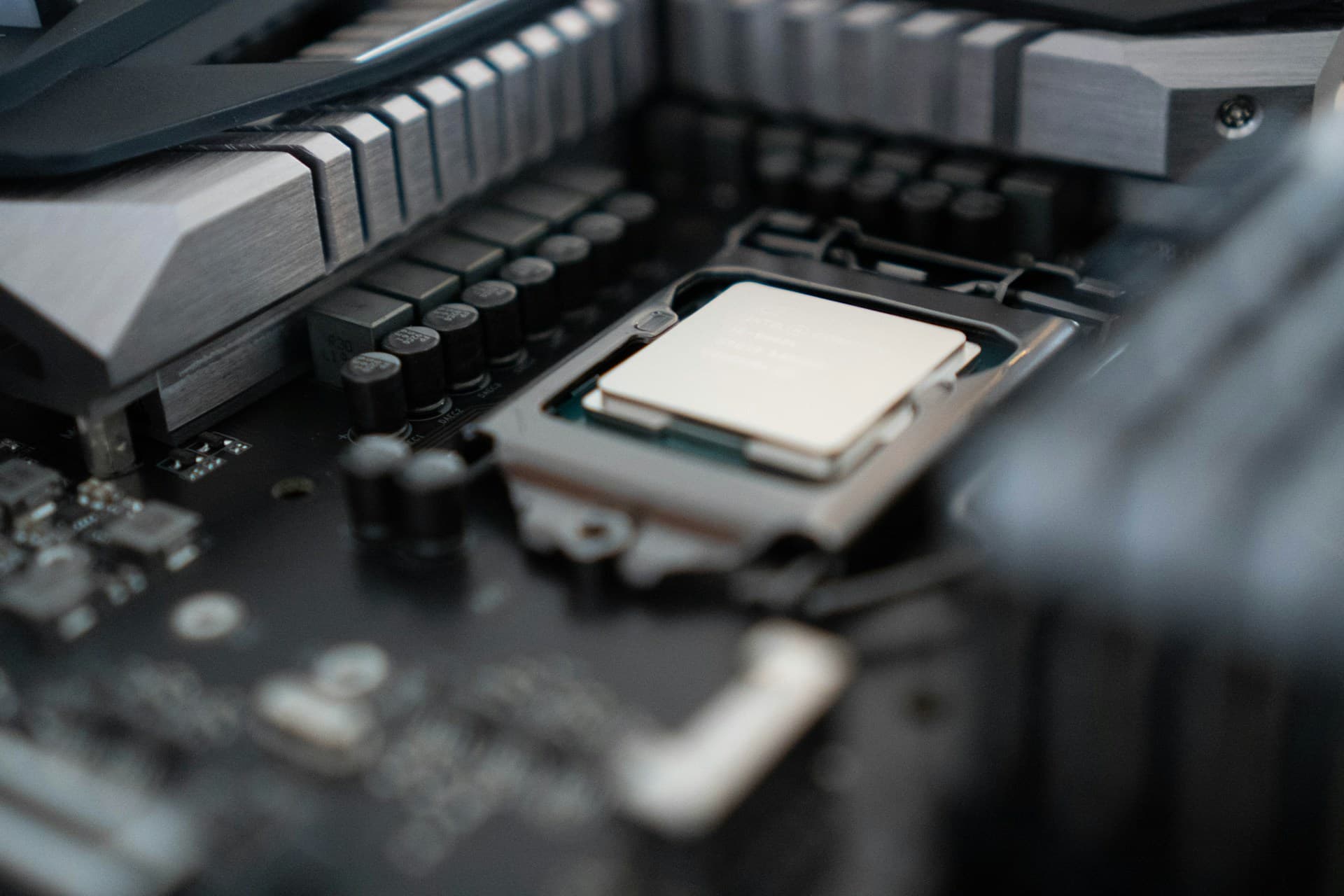
Budget Tier — 6-Core Gaming Foundation (~$145–$230)
Top pick: AMD Ryzen 5 9600X (~$215, AM5, 6 Zen 5 cores). Budget entry: AMD Ryzen 5 7500F (~$145, AM5, 6 Zen 4 cores, no integrated graphics).
The Ryzen 5 9600X delivers 1440p gaming performance within 5–8% of the $480 9800X3D when paired with a mid-range GPU. That gap exists but it's not game-defining — you're trading 5 FPS on average for $265, which is money that does far more work on the GPU side. The 7500F saves another $70 and performs comparably in gaming, but it has no integrated graphics. If your GPU fails and you own a 7500F, you have no display output at all until it's replaced or borrowed — that's happened to me on a troubleshooting session and it's genuinely annoying.
Save money on the CPU. Put it toward the GPU. That trade consistently produces better gaming outcomes — a $215 CPU with a $550 GPU will beat a $400 CPU with a $365 GPU in gaming, every time. Both chips use AM5, which requires DDR5 and an AM5 motherboard. If you're coming from AM4 or LGA 1700, factor in motherboard and RAM costs — this becomes a platform migration, not a chip swap.
Mid-Range Tier — 8-Core All-Rounder (~$265–$340) — Best Value
Top pick: AMD Ryzen 7 9700X (~$265, AM5, 8 Zen 5 cores, 65W TDP). Productivity alternative: Intel Core Ultra 7 270K Plus (~$330, LGA 1851, 20 cores).
The Ryzen 7 9700X ties Intel's Core i9-14900K in gaming while drawing a fraction of the power — 65W versus 253W peak. Tom's Hardware's firmware improvements have substantially raised its benchmark standing since launch. The Intel Core Ultra 7 270K Plus leads in single-threaded performance and absolutely dominates in multi-threaded workloads — more than double the 9700X's multi-core Cinebench 2026 output. That advantage is invisible in gaming but very real in video encoding, compilation, and 3D rendering.
The decision is simple: pure gamer goes 9700X — lower cost, lower power, better gaming. If you stream while gaming, compile code, or edit video regularly, the Intel chip's core count pays off in those workflows. Just be aware that Intel's LGA 1851 platform longevity is less certain than AMD's AM5.
High-End Tier — Gaming Flagship (X3D) (~$480–$500)
Top pick: AMD Ryzen 7 9800X3D (~$480, AM5, 8 Zen 5 cores + 96MB L3 V-Cache). Marginal step-up: AMD Ryzen 7 9850X3D (~$500, 3.3% faster on average).
Tom's Hardware's CPU hierarchy names the 9800X3D the fastest gaming processor available, and it's not close. It beats Intel's Core i9-14900K by 27%, the Ryzen 9 9950X by 31%, and the Core Ultra 9 285K by 38% in their gaming test suite. GamersNexus confirmed a 20% lead over the 14900K in CS2, with the 285K trailing by 38.3% in the same benchmark. The source of this is 3D V-Cache: 96MB of L3 cache stacked on the compute die, reducing how often the CPU waits for data from slower system RAM. Modern AAA games benefit enormously from L3 cache hits — fewer memory stalls means smoother frametimes and better 1% lows, which is the number that actually affects how a game feels to play.
On the 9800X3D versus 9850X3D question: the 9850X3D is 3.3% faster at a $20 premium. Unless you're building a system you intend to keep untouched for seven or more years, the 9800X3D is the right buy. The X3D premium over the 9700X is real and genuinely justified for competitive gamers, high refresh rate monitor owners (165Hz+), or anyone building a gaming PC they plan to keep for five or more years.
→ For socket compatibility checks, BIOS update requirements, and installation steps, see our CPU Upgrade guide.
5. RAM Tiers & Prices
These prices reflect the May 2026 shortage environment — verify at checkout before building any budget.
Before buying anything, run CPU-Z (free download at cpuid.com) and check the Memory tab. It tells you whether your system uses DDR4 or DDR5, what speed it's currently running, and how many slots are occupied. DDR4 and DDR5 are physically incompatible — wrong generation means the RAM won't fit. This single two-minute check prevents the most common and expensive RAM buying mistake. I've seen it happen on a $400+ order. Also worth noting: Micron shut down the Crucial consumer brand in early 2026, so the Crucial System Scanner tool no longer applies. Use CPU-Z instead and cross-reference your motherboard's QVL (qualified vendor list) on the manufacturer's website.
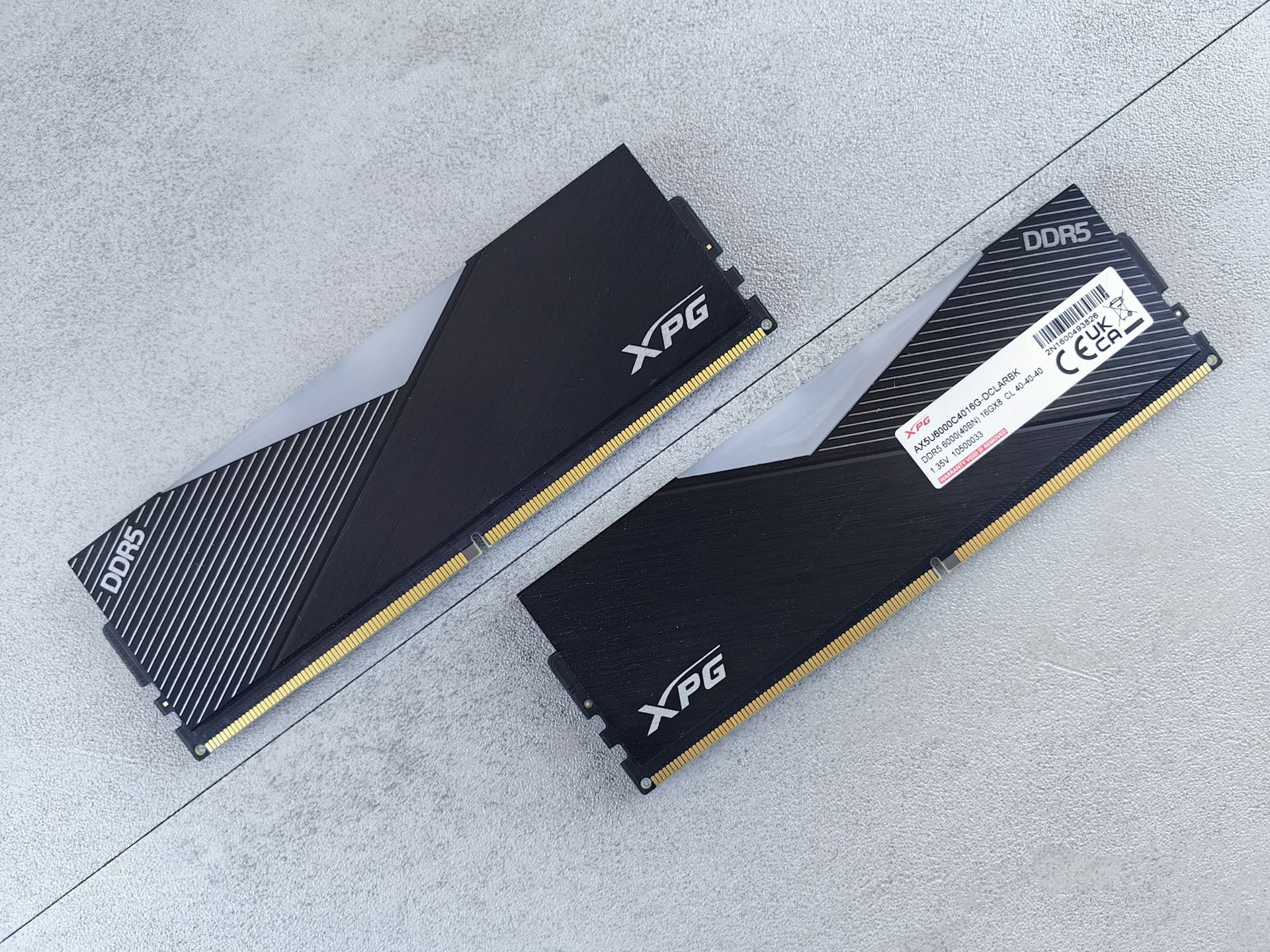
Budget Tier — 16GB DDR5 or 32GB DDR4 (~$130–$220)
DDR5 picks: Kingston Fury Beast DDR5-5200 16GB 2×8GB (~$130), Corsair Vengeance DDR5-5200 16GB (~$140). DDR4 picks: G.Skill Ripjaws V 32GB DDR4-3600 CL16 (~$190–$220).
16GB DDR5 is the floor — workable but tight. AAA titles, a browser, and Discord combined regularly push 14–15GB of system RAM. If your Task Manager is showing RAM usage above 85% during normal use, you're already hitting performance walls. The smarter budget play is 32GB DDR4 if your platform supports it (AM4, LGA 1700). DDR4 pricing is significantly more reasonable right now, and the gaming performance difference between DDR4-3600 and DDR5-6000 is under 3% in most titles. If you can stretch to 32GB DDR5, do it — you won't need to think about RAM again for years.
Mid-Range Tier — 32GB DDR5-6000 (~$310–$410) — Best Value
Top picks: G.Skill Trident Z5 Neo 32GB DDR5-6000 CL30 (AMD EXPO, ~$320–$350), Patriot Viper Venom RGB 32GB DDR5-6000 CL30 (~$310–$340), Corsair Vengeance 32GB DDR5-6000 (~$350+).
DDR5-6000 specifically is the target because on AMD AM5, the memory controller's Infinity Fabric clock synchronizes optimally at that speed. Running faster than 6000 desynchronizes the Fabric clock from the memory clock, which can actually worsen latency. For Intel LGA 1851, DDR5-6000 is also near-optimal. Running DDR5-4800 (the JEDEC default) without enabling XMP or EXPO in BIOS is wasted money — always enable the profile after installation, it takes 30 seconds in BIOS.
On CL30 vs. CL36 timings: at DDR5-6000, CL30 delivers lower latency. Pay the premium when the cost difference is under $30. Skip it if CL30 is $60+ more than CL36. And in this market, move quickly when you find stock at these prices — individual kit restocks sell out within hours.
High-End Tier — 64GB DDR5 (~$700–$900+)
Picks: G.Skill Trident Z5 Neo 64GB DDR5-6000 CL30 (AMD EXPO), Corsair Dominator Titanium 64GB DDR5-6000.
64GB makes sense for video editing with 4K+ footage in DaVinci Resolve or Premiere Pro, 3D rendering in Blender, running multiple virtual machines, or large-scale AI inference and data science workloads with big in-memory datasets. Gaming does not benefit from 64GB in any title as of 2026. If gaming is your only workload, this money does more work toward a better GPU.
The price reality here is brutal: a 64GB DDR5 kit that cost ~$180–$210 in mid-2025 now runs $700–$900+. This is one of the hardest-hit capacity tiers in the current shortage. Unless you have a specific professional need, 32GB and GPU money is the better allocation.
→ For slot placement, dual-channel setup, and installation steps, see our RAM Upgrade guide and How Much RAM Do I Need.
6. SSD Tiers & Prices
Unlike RAM, SSD prices — while elevated versus 2024 lows — have risen far less dramatically and 1–2TB Gen 4 NVMe drives remain genuinely accessible. If you're still on a mechanical hard drive, this is the upgrade that changes your PC more than anything else at equivalent cost. Boot times drop from 85–90 seconds to under 10. Apps open before your hand leaves the keyboard. Game load screens become brief pauses instead of minute-long waits. The first time I upgraded from HDD to NVMe I honestly thought something had gone wrong — it was that much faster.
The standard recommendation in 2026 is PCIe Gen 4 NVMe. Gen 3 is still viable on older boards. Gen 5 is not worth the premium for gaming — I'll explain why in the high-end tier. SATA SSDs are only relevant if your motherboard has no M.2 slots, but even then a SATA SSD cuts your boot time by 80% compared to an HDD and is absolutely worth doing.
Budget Tier — 1TB PCIe Gen 4 NVMe (~$90–$140)
Top picks: WD Blue SN580 1TB (~$90), Samsung 990 EVO Plus 1TB (~$110–$125).
The WD Blue SN580 uses Host Memory Buffer rather than a dedicated DRAM cache chip. That sounds like a compromise but makes no measurable difference in gaming load times or app launches. Sequential reads hit 4,000–5,000 MB/s — 6–8× faster than a typical mechanical hard drive. Most current titles load in under 10 seconds from cold start.
Capacity note: 1TB is tight for a modern game library. Windows and applications consume 60–80GB alone. A few large modern titles — Call of Duty, Flight Simulator, some open-world RPGs — run 100–150GB each. If you're installing four or more large games simultaneously, you'll be shuffling installs within six months. The 2TB versions of these drives are worth the extra $40–$60 if your budget allows it.
Mid-Range Tier — 2TB PCIe Gen 4 Flagship (~$160–$200) — Best Value
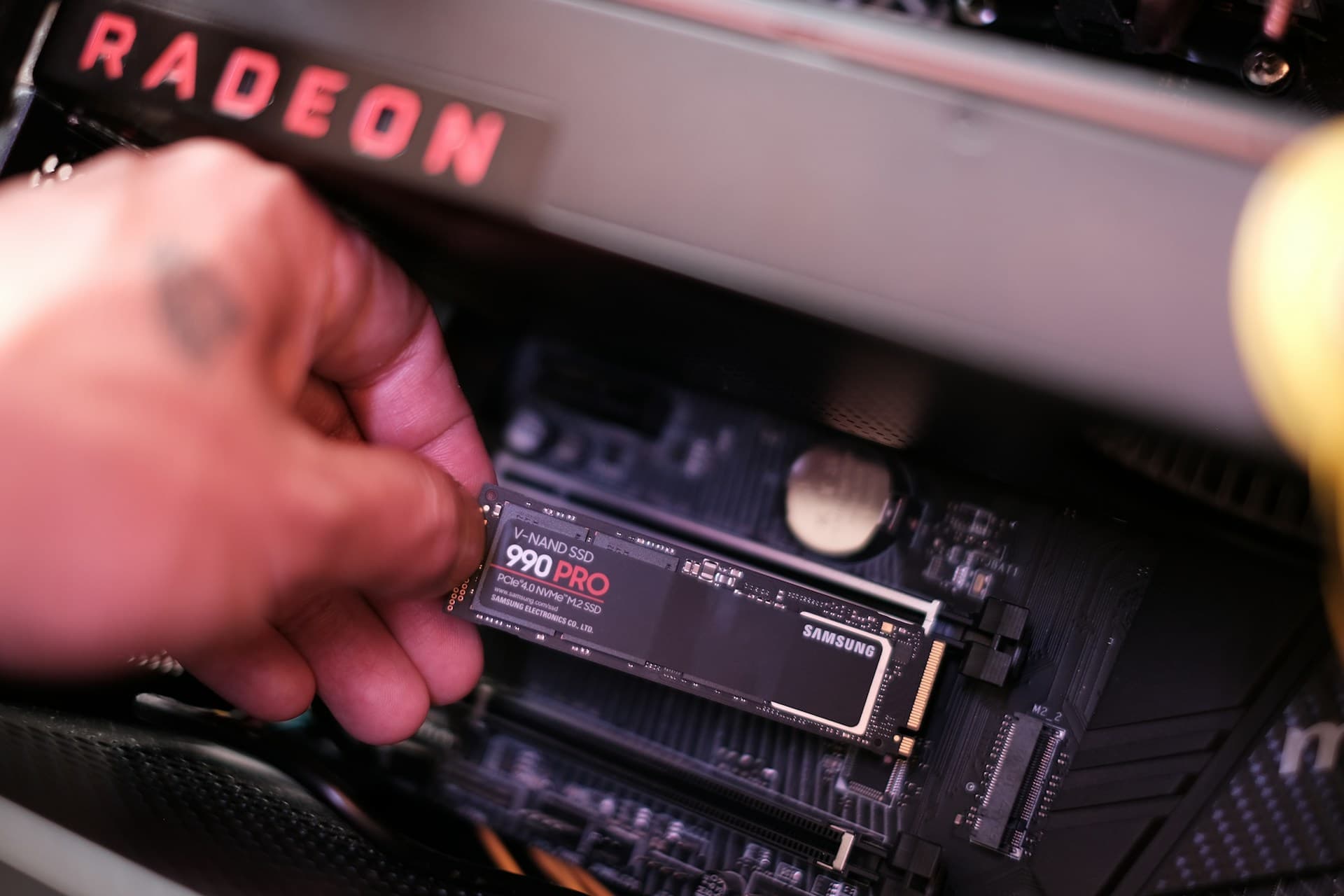
Top picks: Samsung 990 Pro 2TB (~$170–$185), WD Black SN850X 2TB (~$175–$200).
I've used the WD Black SN850X on two builds and recommended it to probably a dozen people at this point. Not a single issue. The Samsung 990 Pro 2TB delivers equivalent performance — sequential reads of 7,300–7,450 MB/s and random 4K read performance around 1,200,000 IOPS. Tom's Hardware named the 990 Pro their top-rated SSD overall and their number one recommendation for gaming builds. Buy whichever is cheaper when you're ready to order — they're genuinely that close.
2TB is the right capacity target because it gives you space for Windows, your full game library, and working files without routinely uninstalling games to make room. The practical gaming difference between a 990 EVO Plus (Gen 4 entry) and a 990 Pro (Gen 4 flagship) is under 2 seconds on typical load screens — what you're buying at this tier is primarily more capacity, better endurance (TBW), and a full DRAM cache for sustained write workloads.
High-End Tier — 2TB PCIe Gen 5 NVMe (~$220–$320+) — Skip for Gaming Builds
Picks: Crucial T705 2TB (PCIe Gen 5, ~$220–$270), Corsair MP700 Pro XT 2TB (~$260–$320).
Sequential read speeds of 12,000–14,800 MB/s — roughly double Gen 4 peak. Remarkable on paper. In gaming, it doesn't matter. The bottleneck in game loading is not sequential throughput — it's random access latency and decompression speed. A Gen 4 flagship and a Gen 5 drive deliver nearly identical game load times. The practical load time difference between the two is under 2 seconds on most titles — often less than 1.
Gen 5 is for content creators moving large raw footage files between drives, AI developers loading multi-gigabyte model weights repeatedly, and professionals doing large-scale data work where sequential throughput is the real constraint. It also requires a PCIe Gen 5-capable M.2 slot (Intel 12th gen+ or AMD Ryzen 7000+). If gaming is your primary use case, skip this tier and put the $85–$120 premium toward RAM or GPU.
→ For M.2 slot identification, boot drive cloning steps, and the full installation walkthrough, see our SSD Upgrade guide.
7. Component Pairing Logic
The tiers above exist in isolation. Real decisions involve how components pair with each other — and where mismatches waste money. These are the combinations that come up most often and matter most.
Budget CPU + High-End GPU
At 1440p and 4K, this is often the right call. At higher resolutions, the GPU is doing the majority of the work and CPU differences compress. A Ryzen 5 9600X paired with an RX 9070 XT will lose only 2–5% FPS compared to a Ryzen 7 9800X3D with the same GPU at 1440p. The $265 CPU savings are better spent on a GPU tier upgrade. Where this pairing breaks down: CPU-limited games at 1080p competitive settings — CS2 and Valorant at 300+ FPS targets — where the CPU starts to become visible.
High-End CPU + Budget GPU
This is the classic money-wasting mismatch, and I've seen it more times than I can count. The most common version is someone buying a 9800X3D and pairing it with an RX 7600 or RTX 3060 because they're "upgrading one thing at a time." The X3D's advantage only shows up when the GPU isn't the bottleneck — which it always is at that tier. A Ryzen 7 9800X3D paired with a budget GPU means you're paying $480 for a CPU whose gaming advantage only appears when the GPU isn't limiting performance. Save CPU money and put it into the GPU.
New GPU in an Old System (Pre-2020 CPU)
Viable, but with a ceiling. Dropping an RX 9070 XT into a system running a Ryzen 5 3600 or Core i7-9700K will deliver meaningful GPU performance gains in GPU-bound scenarios, but the CPU will bottleneck heavily in CPU-dependent titles and at 1080p high refresh rates. If your CPU is pre-2020, evaluate whether a platform upgrade makes more sense than a standalone GPU purchase. Our Upgrade or Buy New guide walks through this decision in detail.
DDR5-6000 + Any AM5 CPU
This is the target pairing for new AM5 builds. DDR5-6000 hits the Infinity Fabric synchronization point on AM5, giving you the best combination of bandwidth and latency. Don't spend extra on DDR5-7200+ unless you're actively overclocking — the frequency headroom narrows and the gains are minimal while latency can worsen. And always enable XMP (Intel) or EXPO (AMD) in BIOS after installation. DDR5-4800 left running without that profile enabled is money you've already spent being wasted.
8. Five Buying Mistakes That Are Uniquely Costly in 2026
The shortage environment creates a few failure modes that wouldn't have been significant issues in previous years. These aren't generic cautions — they're the specific mistakes I've seen people make repeatedly right now.
Mistake 1: Buying RAM Without Checking Your Platform First
At current DDR5 prices, buying the wrong generation is more expensive than ever. DDR4 and DDR5 do not physically fit in each other's slots — the notch is in a different position, and attempting to force one risks damaging the motherboard. Run CPU-Z (free at cpuid.com), confirm your RAM type before placing any order. Two minutes to run. Can save $300+.
Mistake 2: Waiting for RAM Prices to Drop
Every major analyst — TrendForce, Gartner, Counterpoint Research — projects the DRAM shortage to persist through 2027–2028. Waiting for a meaningful price drop in the next six months is not a reliable strategy. If you need RAM and you find it close to current market rates, buy it. The one exception: if you can functionally live with your current setup for another 12–18 months, late 2026 or early 2027 may offer some relief. But indefinite waiting will cost most people more than buying now.
Mistake 3: Budgeting Around MSRP for High-End GPUs
High-end NVIDIA GPU street prices are substantially above MSRP in 2026. The RTX 5090 has a $2,000 MSRP but trades at $3,500–$4,000+. The RTX 5080 at $999 MSRP often sells at $1,050–$1,200. Always verify current in-stock pricing before committing to cards at the top of the stack. The mid-range — RX 9070 XT, RTX 5070 — is far closer to MSRP and represents much better value per dollar right now.
Mistake 4: Buying a GPU Without Verifying Your PSU Wattage and Connector Requirements
I've seen this go wrong in a few ways — someone drops an RTX 5070 Ti into a 550W PSU from 2019, gets crashes and black screens, and spends three days thinking the GPU is defective before realizing the PSU is the problem. Check your PSU wattage against the GPU's TDP plus 100W system headroom. The RX 9070 XT requires a 700W+ PSU and uses a standard 8-pin connector. NVIDIA's 50-series cards — RTX 5070, 5070 Ti, 5080 — use the 16-pin 12VHPWR connector, which requires either a native connector on your PSU or an adapter. If your PSU lacks a 16-pin 12VHPWR connector, verify that the adapter cable is long enough for your case layout before you order the card. A PSU that doesn't fit this build is a return fee and a delay you don't need.
Mistake 5: Enabling XMP/EXPO — Then Never Verifying It Stayed Enabled
After a BIOS update, XMP/EXPO profiles sometimes reset to disabled. Your RAM reverts to JEDEC default speeds — DDR5-4800 instead of DDR5-6000 — and you don't notice because Windows boots and games run, just 10–15% slower in CPU-limited scenarios than they should. This is particularly painful in 2026 when people are paying $310–$410+ for DDR5 kits. After installing RAM and enabling XMP or EXPO in BIOS, run CPU-Z once more and confirm the Memory tab shows your full speed — DDR5-6000 or whatever your kit is rated for. Then after every BIOS update, check again. I've had this reset on me twice on the same board across two firmware updates. It takes 30 seconds and it's the only way to confirm you're actually running the speed you paid for.
Frequently Asked Questions
Is the RX 9070 XT worth it over the RTX 5070 right now?
At current street prices, yes — for most gamers. The RX 9070 XT delivers better rasterization performance per dollar and carries 16GB of GDDR6 versus the RTX 5070's 12GB. The RTX 5070 wins in ray tracing and DLSS Multi Frame Generation quality. If you stream heavily on Twitch or play a lot of path-traced games, the RTX 5070 is worth the premium. If you're primarily gaming at 1440p and want the most FPS per dollar, the RX 9070 XT is the stronger value pick.
My PC is on DDR4 — should I switch to DDR5?
Not unless you're also changing your CPU platform. DDR4 and DDR5 are physically incompatible — you cannot drop DDR5 into an AM4 or LGA 1700 motherboard. If you're on a DDR4 platform that's running well, staying put is the right call at 2026 DDR5 prices. If you're building new on AM5 or Intel LGA1851, DDR5-6000 CL30 is the right choice.
Is the Ryzen 7 9800X3D still worth buying in mid-2026?
Yes. The Ryzen 7 9800X3D remains the fastest gaming CPU available, and the 9850X3D offers only a 3.3% improvement at a higher cost. Unless AMD launches a next-gen X3D chip in your timing window, the 9800X3D is the right buy for a gaming-focused build you plan to keep for 4+ years.
How much RAM do I actually need for gaming in 2026?
16GB is the floor — workable but tight. Modern AAA titles plus a browser and Discord regularly push past 14GB of system RAM combined. 32GB is the recommended target. Given current DDR5 pricing, if you're choosing between 16GB now and 32GB later, buy 32GB in a single step — buying twice costs more than buying right once.
Does a Gen 5 NVMe actually load games faster than Gen 4?
No — not in any way you'd notice. The practical game load time difference between a PCIe Gen 4 flagship and a Gen 5 drive is under 2 seconds on most titles, often less than 1 second. Gen 5 matters for content creators and AI developers moving very large files. If gaming is your primary use case, spend the Gen 5 premium on your GPU or RAM instead.
Where to Go Next
Depending on where you are in the decision process, one of these is your logical next stop:
- Diagnose Your Bottleneck → Not sure which component to upgrade? Use Task Manager and our symptom guide to find the real bottleneck before spending anything.
- Installation Guide → Step-by-step physical installation for RAM, SSD, GPU, and CPU — with compatibility checks and common mistake warnings.
- PC Upgrade Checklist → A structured checklist covering pre-purchase verification, installation steps, and post-upgrade validation for every component type.
- Upgrade or Buy New? → The decision framework for when upgrading stops making financial sense — especially relevant for systems 6+ years old.
- RTX 5070 Ti vs RX 9070 XT — Deep-Dive Comparison → A full head-to-head on the two most-debated GPUs of 2026, with current street prices, benchmark data, and a clear verdict by use case.
- Wondering if you should wait for next-gen instead? → Nvidia and AMD's next GPUs are delayed into 2027 — here's what that means for buying now versus waiting.