What Does Upgrading RAM Actually Do?The real, day-to-day benefits — with concrete before/after numbers
What This Guide Covers
There's a specific thing that happens when you finally have enough RAM: your browser tab doesn't reload when you switch back to it. It just appears, instantly, exactly where you left it. Most people don't realize they're missing this until they get it — because a tab that reloads every single time you return to it just starts to feel normal after a while.
This page is for the person who has heard "upgrade your RAM" and wants to know: OK, but what exactly will change? Not specs. Not compatibility. The actual before-and-after experience. I'll go through each symptom that RAM fixes, explain why it fixes it, and give you the exact Task Manager check that tells you whether a RAM upgrade will make a difference for your specific situation.
1. What RAM Actually Does (The Short Version)
RAM is your computer's short-term workspace. When you open Chrome, Discord, and a game simultaneously, all three need to keep their data somewhere instantly accessible so your CPU doesn't have to wait. That somewhere is RAM. Your storage drive — even a fast NVMe SSD — is still roughly 10 times slower than RAM for random reads. The moment your system runs out of RAM, it starts borrowing space from that slower drive. Everything gets sluggish.
The size of your RAM determines how much your system can hold in that fast workspace at once. Going from 8GB to 16GB doesn't make your CPU faster — it gives the whole system more room to breathe before it starts reaching for the slower fallback. That's the entire mechanism behind why RAM upgrades feel so dramatic when you actually needed them. For a detailed breakdown of how RAM speed and capacity affect real-world performance benchmarks, Tom's Hardware's RAM benchmark hierarchy is the most thorough resource available.
2. What's Happening When RAM Runs Out
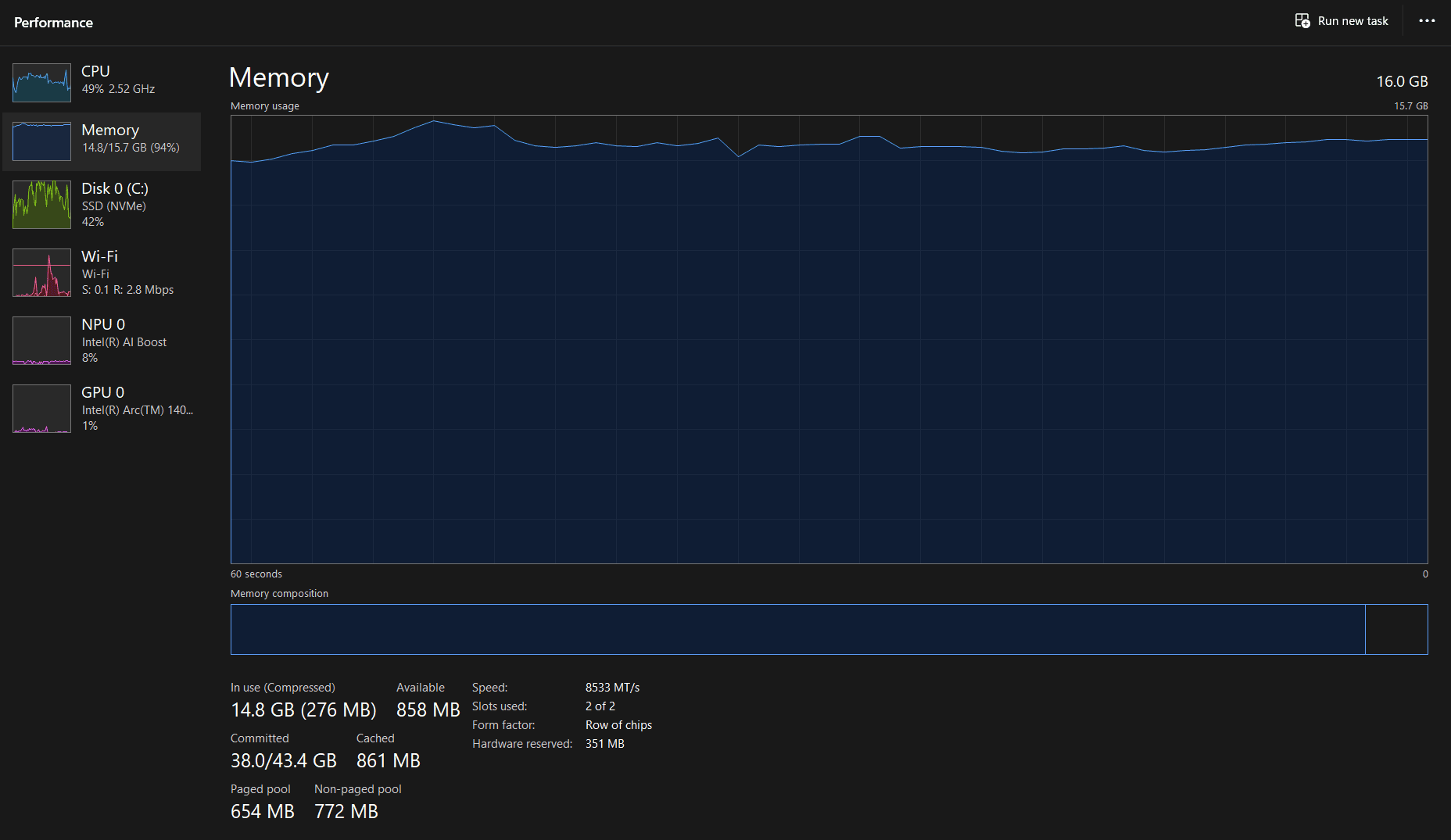
When Task Manager shows your RAM at 90%+, Windows starts a process called paging — it takes data from RAM and writes it to a reserved section of your storage drive (called the page file or virtual memory) to free up space for whatever's needed right now. Then, when you switch back to that application, it has to read that data back from disk before it can respond. Even on an NVMe SSD, this introduces delays in the half-second-to-two-second range. On an older mechanical hard drive, it's far worse.
The frustrating part is that these symptoms look random. Applications flash "Not Responding" briefly before snapping back. Your mouse moves fine but everything else seems frozen. A game runs smoothly for twenty minutes and then hitches for half a second as you cross into a new area. None of it looks like a RAM problem on the surface — it just feels like intermittent instability with no obvious cause.
3. Benefit 1: Browser Tabs Stop Reloading
This is the most immediately noticeable change for most people. Chrome (and any Chromium-based browser) is aggressive about discarding inactive tabs from RAM when memory is constrained. The moment you switch away from a tab, Chrome decides it might need that RAM for something else and dumps the tab's content. When you switch back, it has to reload the page from scratch. You see the spinner, the brief blank flash, and then the page comes back — usually in one to two seconds, but sometimes longer if the site is heavy.
After a RAM upgrade, this stops. Chrome has enough space to keep all your tabs in memory simultaneously, so switching back to one is instant — the page is right where you left it, scroll position and all. If you regularly have 15+ tabs open alongside a music tab and any other running application, this single change alone makes the upgrade feel worth it.
The exact trigger varies, but in my experience, running Chrome with 15–20 tabs plus Discord plus anything else on 8GB puts you solidly in tab-reload territory. On 16GB, the same setup runs with plenty of headroom and tabs stay loaded indefinitely.
4. Benefit 2: Alt-Tab Becomes Instant
If you've ever minimized a game to check Discord and watched the screen go grey for two to four seconds while the system catches up, that's a RAM problem. The game can't stay fully loaded in the background because there isn't space — so when you alt-tab back, it has to reload its assets from storage before the window becomes usable. Same thing in reverse: the browser had to dump data to make room for the game when you first launched it.
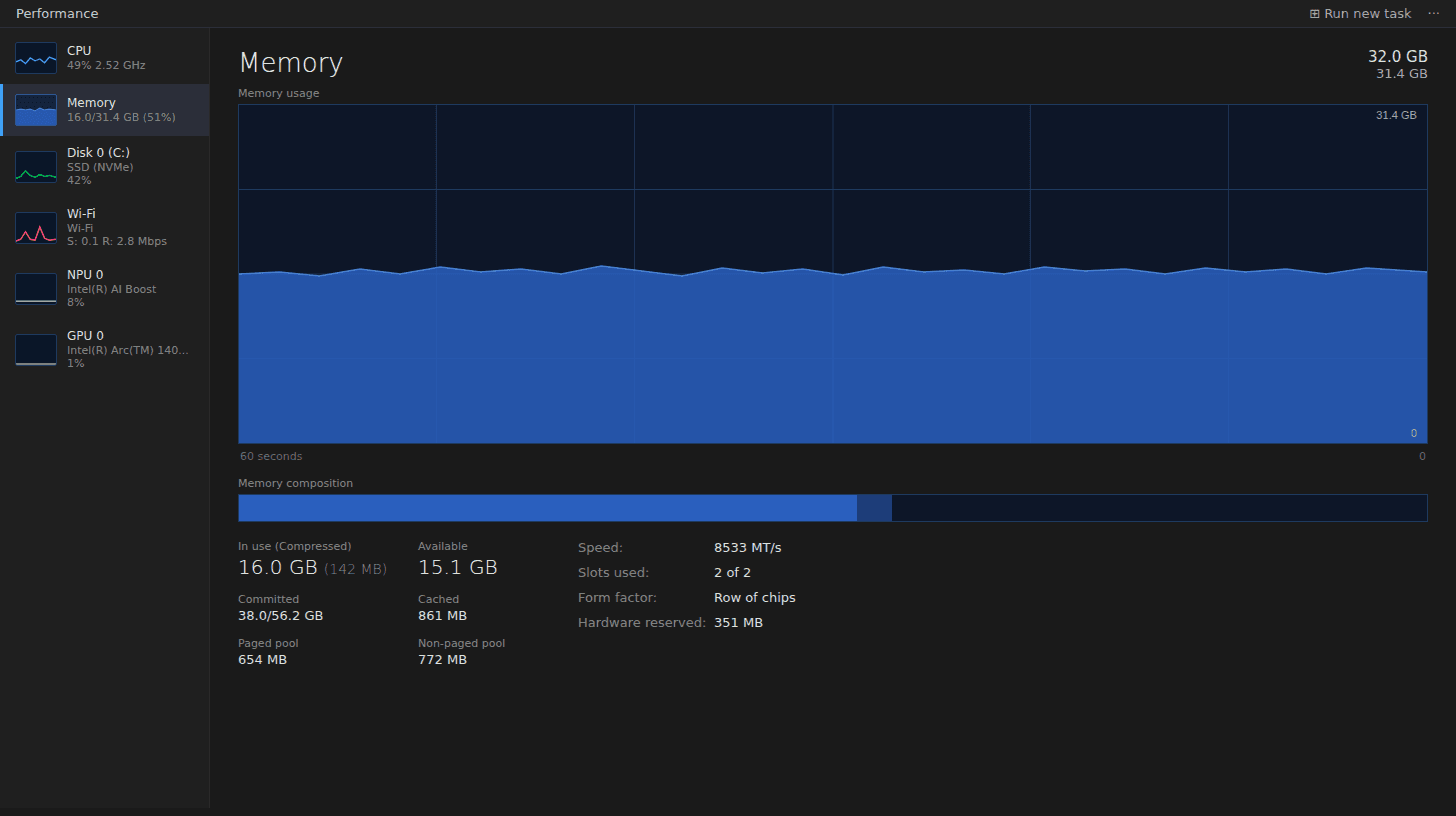
Going from 8GB to 16GB typically drops RAM utilization from around 90–94% during normal gaming/multitasking down to around 50–60%. That 30–40% headroom is what allows both the game and the browser to stay fully loaded simultaneously. Alt-tab becomes instant in both directions — the game window appears immediately, and so does Discord.
This also applies to non-gaming switching: minimizing Photoshop to check a reference in the browser, switching from a video editing timeline to your file manager, or having Excel and a PDF open at the same time.
5. Benefit 3: That Specific Game Stutter Disappears
There are two fundamentally different kinds of stuttering in games, and only one of them is a RAM problem. The first kind is consistently low FPS — the game just never runs well. That's a GPU issue. The second kind is a half-second freeze that happens at a specific moment, then normal performance resumes. Entering a new area. A cutscene transition. The first time a new enemy type appears. That second kind is almost always RAM or storage.
When a game needs to stream in new assets — textures, audio, geometry for the next section — it tries to load them into RAM. If RAM is full, Windows has to evict something else first, which takes time. The result is that half-second freeze while the system shuffles data in and out. On an SSD this is brief; on an HDD it can last several seconds per occurrence.
Upgrading RAM gives the game more space to pre-load upcoming areas without having to evict anything. The stutter goes from noticeable to nonexistent. I first noticed this pattern in Elden Ring — on 8GB, fast-travelling to a new area meant a half-second freeze every single time. After the upgrade, those freezes stopped entirely. This shows up most in games with large streaming worlds — Elden Ring, Cyberpunk 2077, and Warzone are the three I've seen it most consistently in. Any game with frequent scene cuts or fast travel between dense areas will stutter this way on 8GB.
6. Benefit 4: Productivity Apps Stop Freezing Mid-Task
For anyone doing creative or office work, the benefit here is more about the "Not Responding" hourglass disappearing than any dramatic speed improvement. Photoshop, Lightroom, Premiere Pro, DaVinci Resolve, and large Excel workbooks all hold massive amounts of data in RAM during active work. If you're low on RAM, switching between tools within Photoshop causes a brief pause while the application waits for its data to be paged back in from disk. Applying a complex filter to a high-resolution image can cause the spinning wheel that sends you to make a coffee.
Going from 16GB to 32GB makes the biggest difference here — 16GB is usually enough to run the application itself without drama, but 32GB is where large files stay fully resident in memory throughout a working session. Switching between Lightroom and Premiere while both have projects open, scrubbing through a 4K timeline, or running a render while continuing to edit — these all feel meaningfully better at 32GB than at 16GB. For pure gaming or general browsing, the 8GB→16GB jump is the one that matters. For creative work, it's 16GB→32GB.
7. When a RAM Upgrade Won't Help
Adding RAM only fixes problems caused by running out of RAM. If your desk is already large enough for your paperwork, a bigger desk doesn't help. Here are the specific cases where a RAM upgrade will do very little:
You won't notice a difference from a RAM upgrade if:
- Your Task Manager Memory tab shows 50–60% or lower during normal use. You're not RAM-limited. The benefits above don't apply to you. Look elsewhere for the cause of your slowdowns.
- Your PC is slow at boot and opening apps, but RAM usage is normal. This is almost always a mechanical hard drive running at 100% utilization. Check the Disk tab in Task Manager. If it's at 100%, an SSD upgrade is what you need — not more RAM. See our guide on whether to upgrade RAM or SSD first.
- Your games have consistently low FPS, not intermittent stutters. Constant low frame rates are a GPU problem. RAM doesn't produce more frames per second unless you were severely RAM-constrained — think 4GB trying to run a modern AAA title. Peak FPS is set by your graphics card, not your memory.
- Your laptop is overheating. Thermal throttling — where the CPU slows itself to avoid damage — causes slowdowns that look like a bottleneck. Cleaning dust from vents and reapplying thermal paste are what fix this, not RAM.
8. Common Mistakes When Upgrading for These Benefits
These are the patterns I see most often from people who upgraded RAM and felt like nothing changed — or who bought more than they needed.
Mistake 1: Upgrading RAM when the real problem is the HDD
A mechanical hard drive at 100% utilization causes exactly the same surface symptoms as insufficient RAM — brief freezes, apps going "Not Responding," slow tab switching. I've talked to people who bought 32GB of RAM and felt zero difference, because their Disk tab in Task Manager was sitting at 100% the entire time. The RAM was never the bottleneck. Check the Disk tab before ordering anything. If it's consistently high, an SSD is your actual solution.
Mistake 2: Expecting a RAM upgrade to increase FPS
If you're buying RAM hoping your average frame rate goes up, you'll be disappointed unless you were severely constrained — running a modern game on 4GB or 6GB, for example. More RAM fixes stuttering (the momentary freeze pattern) not framerate. If your GPU is at 95–100% and your average FPS is low, a GPU upgrade is what moves the needle. See our comparison of whether to upgrade RAM or GPU first for the full breakdown.
Mistake 3: Buying more RAM than the use case needs
Going from 8GB to 32GB when 16GB would have fixed everything is money spent on headroom you'll never use. For gaming and general multitasking, 16GB is the right target in 2026. That said, RAM prices have risen sharply in early 2026 — check current prices before assuming 16GB and 32GB will have the gap they had a year ago. 32GB makes sense for creative work, heavy modding, or streaming. 64GB is for video editing at 4K or running virtual machines. If you're unsure how much you actually need, read our dedicated guide on how much RAM you actually need.
9. How to Check If a RAM Upgrade Will Help You
This takes about two minutes and gives you a definitive answer for your specific situation. Open Task Manager with Ctrl+Shift+Esc, click the Performance tab, and select Memory. Now do your normal tasks for 10 minutes — open your usual apps, browse with your typical tab count, start a game, whatever normally makes the PC feel slow.
Watch the utilization percentage in the top right. Here's how to read what you see:
- →85% or above consistently: A RAM upgrade will fix the symptoms described in this article. The higher the number, the more dramatic the improvement will feel.
- →70–84%: You're getting close to the limit. You may notice occasional tab reloads or brief pauses. A RAM upgrade would help but won't be as dramatic.
- →Below 70%: RAM is not your bottleneck. Check the Disk tab next (100% = HDD problem), then GPU utilization if gaming performance is your concern.
While you're in Task Manager, also check the Disk tab. If that's sitting at 100% while you open apps, that's the actual problem — and it will mask the RAM reading because paging is adding extra disk activity. Fix the disk situation first (SSD), then reassess RAM. For more on making this diagnosis, see our guide on finding your real PC bottleneck.
If you've confirmed RAM is the issue and want to know what to actually buy, the RAM upgrade compatibility guide covers DDR4 vs DDR5 identification, dual channel, XMP/EXPO, and everything you need to check before ordering.
Frequently Asked Questions
Does upgrading RAM make your PC faster?
Not in the sense of raw processing speed — RAM doesn't change how fast your CPU runs. But if your current RAM is full during normal tasks, upgrading removes the bottleneck causing your slowdowns. Going from 8GB to 16GB typically drops utilization from around 90–94% down to 50–60%, and the difference in day-to-day responsiveness is dramatic enough that the machine feels like a different computer.
Will upgrading RAM fix my browser tabs reloading?
Yes, in almost every case. Chrome is aggressive about ejecting inactive tabs from memory when it's running short — the moment you switch away, it decides it might need that RAM for something else. Once you upgrade and have real headroom — typically sitting at 50–60% instead of 90%+ — the browser keeps all your tabs resident and they appear instantly when you switch back. This is the single most consistently reported improvement people notice after a RAM upgrade.
Does more RAM increase FPS in games?
Usually not in terms of average FPS — that's primarily a GPU job. But RAM does fix a specific type of stuttering: the half-second freeze when entering a new area or when a new enemy type loads. Going from 8GB to 16GB eliminates most of this pattern in modern games. Consistently low FPS throughout a session, on the other hand, is a GPU problem that RAM won't fix.
How do I know if I actually need more RAM?
Open Task Manager (Ctrl+Shift+Esc), click Performance, then Memory. Do your normal tasks for 10 minutes and watch the utilization percentage. Consistently at 85% or above means you'll notice a real difference from upgrading. Below 70% and RAM isn't your problem — look at the Disk tab next to check for an HDD bottleneck.
My PC is slow but my RAM usage looks fine — what else could it be?
Check the Disk tab in Task Manager. If it's sitting at 100% while you open apps or browse, that's a mechanical hard drive bottleneck — it causes slowness that feels identical to RAM problems, but an SSD upgrade is what fixes it. If both disk and RAM look normal, check CPU utilization and temperatures using HWMonitor (free at cpuid.com) — thermal throttling can cause slowdowns that look like a hardware bottleneck when the real fix is cleaning dust.
What to Read Next
- RAM Upgrade Compatibility Guide — Once you've confirmed RAM is your bottleneck, this page covers DDR4 vs DDR5 identification, dual channel slot placement, XMP/EXPO, and how to avoid buying the wrong kit.
- How Much RAM Do I Actually Need? — The opinionated breakdown of 8GB vs 16GB vs 32GB vs 64GB, with concrete use-case recommendations and 2026 pricing context.
- Upgrade RAM or SSD First? — If you're not sure which one is actually your bottleneck, this page walks through the exact Task Manager checks that tell you which upgrade will have more impact.
- Upgrade RAM or GPU First? — For gamers deciding between the two: the 16GB threshold rule, how to read GPU utilization, and when each upgrade actually produces better gaming results.