How to Upgrade an Old PC in 2026What still makes sense — and where the compatibility wall is
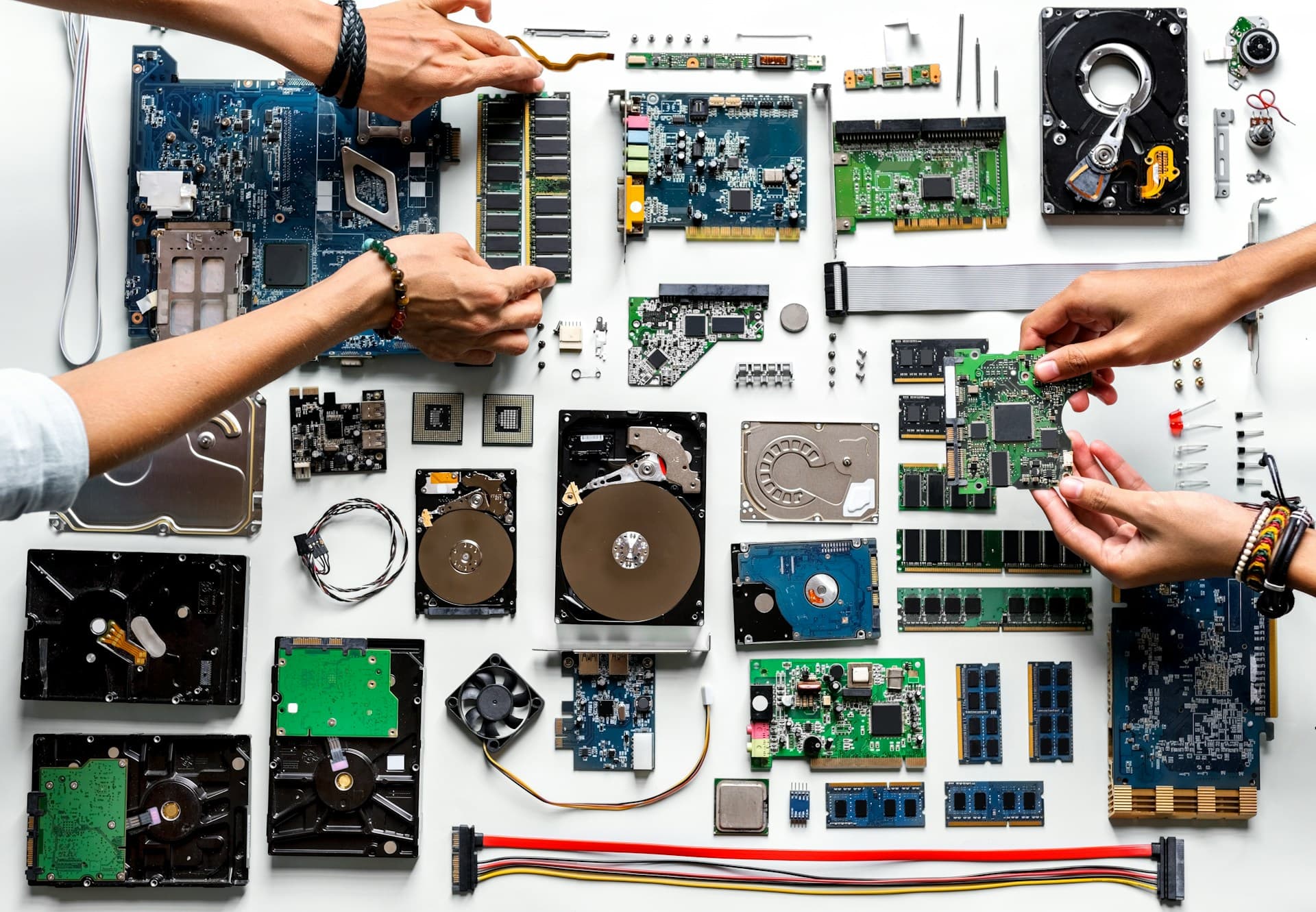
I've helped a few people through “should I upgrade my old PC?” conversations, and the advice is almost never the same as it would be for a modern machine. The parts you can actually buy might not be compatible. The CPU may have no upgrade path at all. And the cost math changes completely once you realize you're dealing with a DDR3 platform that nobody makes new hardware for anymore.
The one thing I'd tell anyone before they spend a dollar: the DDR generation your board uses matters more than the year it was built. Two machines from 2016 can have completely different upgrade ceilings depending on whether they shipped with DDR3 or DDR4.
What This Guide Covers
1. Is Your PC Worth Upgrading?
Before spending a dollar on anything, spend two minutes finding out what you're actually working with. The most important question isn't “how old is my PC?” — it's “what RAM generation is it running?” That single piece of information determines most of the upgrade decisions that follow.
Start by finding your CPU model. Press Win + R, type msinfo32, and hit Enter. Look at the Processor field — it shows the exact CPU model and generation. Write it down.
Then find your RAM type. Download CPU-Z (free at cpuid.com), open it, and click the Memory tab. The Type field will say DDR3, DDR4, or DDR5. That's what you need.
With those two data points, here's how the upgrade potential breaks down:
| Platform | SSD | RAM | GPU / CPU |
|---|---|---|---|
| DDR4 + CPU from 2017+ | ✅ Always worth it | ✅ Upgrade to 16GB | Depends — check sections below |
| DDR3 + CPU from 2014–2016 | ✅ Always worth it | ⚠️ Only if under $20 used | ❌ Almost never worth it |
| DDR2 or older | ⚠️ One SSD only, then stop | ❌ Don't invest | ❌ Don't invest |
2. SSD on an Old PC — Always Worth It
This one I'm confident about across the board: if your old PC is still running on a spinning hard drive, a SATA SSD is almost always worth doing — even on machines from 2012. The impact is so large it's barely a debate. A 2013 Dell Inspiron I worked on was taking over four minutes to reach the desktop from a cold boot on its original HDD. After installing a $60 SATA SSD, the same machine was at the desktop in under 30 seconds. The rest of the hardware hadn't changed.
The key compatibility note: older machines often don't have M.2 slots. That's fine. You don't need NVMe for this. A 2.5-inch SATA SSD connects to the same SATA port your HDD uses now, and you can either add it alongside the existing drive or replace it. SATA SSDs top out around 550 MB/s — much slower than NVMe — but still roughly 10x faster than a typical spinning drive, which is why the improvement on boot times and app launches is so dramatic.
What you won't get from an SSD: more FPS in games, faster multitasking if the real problem is RAM, or anything related to CPU or GPU performance. An SSD fixes one specific thing — storage speed — and it fixes it completely. If your machine feels slow because of anything else, the SSD alone won't solve that. But if it's on an HDD, the SSD comes first regardless.
Capacity: for an old machine you're trying to extend another year or two, 500GB to 1TB is the right range. A 240GB drive fills up faster than you'd expect once Windows, apps, and documents are on it. Stick to 500GB or higher.
3. RAM on an Old PC — Depends on DDR Generation
This is where the DDR generation question matters most. If you're on DDR4, you're in a good position — DDR4 is still actively manufactured, prices are reasonable, and upgrading to 16GB is straightforward and worth doing. In 2026, 8GB causes real problems with normal use: Windows 11 alone uses 3–4GB at idle, and Chrome with a few tabs pushes most 8GB machines past 80% utilization constantly.
DDR3 is a different story. It's technically still available, but you're buying parts for a dead platform — supply is limited, prices are higher than they should be relative to what you're getting, and the machines that use DDR3 are generally old enough that you'd be putting money into a system approaching end of useful life anyway. If you can find DDR3 sticks used for under $20 on a local marketplace or eBay, going from 8GB to 16GB is a fine short-term fix. If the only option is paying $50–70 for DDR3 at retail, that money is better saved toward a replacement.
DDR2 systems are past the point of worthwhile RAM investment. If CPU-Z shows DDR2, don't spend money on RAM for that machine. Put one SSD in it if it has a SATA port, use it for whatever light tasks it can still handle, and plan the replacement.
DDR3 and DDR4 are not interchangeable
The notch position on each stick is physically different. Forcing the wrong type into a slot will damage the motherboard. Always confirm your RAM type in CPU-Z before ordering anything.
4. GPU on an Old PC — Usually Not Worth It
The GPU upgrade is where most people with old machines get burned. The issue isn't that modern GPUs won't physically fit — they will, PCIe slots are backward compatible. The problem is that old CPUs bottleneck modern GPUs severely enough that you end up spending $300 to get 50–60% of what that GPU can actually do.
A Core i5 from 2014 paired with an RTX 4060, for example, produces meaningfully worse gaming performance than the same GPU in a modern system — the GPU sits at 60–70% utilization while the CPU maxes out. I've seen this exact scenario play out, and it's a frustrating outcome after spending real money.
The exception: CPUs from 2018 or later. If you're running a Ryzen 2000 series (e.g., Ryzen 5 2600), an 8th or 9th gen Intel Core, or anything newer, a modest GPU upgrade can still make sense. The CPU isn't fast enough to fully saturate a flagship GPU, but it can keep up with something in the RTX 3060 / RX 6600 range reasonably well. Check the TechPowerUp GPU specs database to compare performance tiers for your specific situation.
Before committing to a GPU upgrade on any older machine, confirm the GPU is actually your bottleneck. Open Task Manager during a game, go to the Performance tab, and find the GPU meter. If it's at 95–100% while your CPU is under 80%, GPU is the bottleneck and an upgrade will help. If the CPU is maxed and the GPU has headroom, a new GPU won't fix anything — the CPU is the limit.
5. CPU on an Old PC — Almost Never Worth It
CPU upgrades on old machines run into a hard wall: the new CPU has to fit the same socket as the existing board. And most old Intel sockets have no meaningful upgrade path left. LGA1150 and LGA1151 topped out years ago — the best chips those sockets support were released long before the current generation, and they're barely faster than mid-range parts from the same era. You'd be spending money to go from one aging chip to a marginally less-aging chip on a dead platform.
AMD AM4 is the real exception. AM4 has an unusually long support history — if you're running a Ryzen 1000 or 2000 series processor on an AM4 board, there are genuine upgrade targets available. The Ryzen 5 5600 and Ryzen 7 5700X are significant jumps in performance and still use the AM4 socket. Whether your specific board supports those newer CPUs requires a BIOS update in most cases, and the board has to be capable of running that update — check the manufacturer's CPU support list before buying anything. Check the AMD AM4 chipset page for the official compatibility matrix before buying any CPU for an AM4 board.
One important caveat on the AM4 BIOS update: if your current CPU is old enough that it can't run the updated BIOS version, you're stuck — you'd need a compatible intermediate CPU to flash the BIOS first. This catches more people than you'd expect. Check the manufacturer's site, confirm your current CPU can install the required BIOS version, and update while the old CPU is still installed. Never try to boot an incompatible new CPU without that step done first.
For almost everyone with a pre-2018 non-AMD machine: the CPU upgrade isn't worth pursuing. The socket is a dead end, the performance gain is marginal, and the money is better spent elsewhere — or saved toward a replacement.
6. When to Buy New Instead
The clearest signal that it's time to replace rather than upgrade: you need more than one major component replaced to make the machine genuinely useful again. An SSD plus RAM on a DDR4 machine is a reasonable $120–150 investment that produces real improvement. But if you're also looking at a CPU with no upgrade path, a GPU that would be bottlenecked, and a platform with no future — you're not upgrading anymore, you're rebuilding. At that spending level, a new mini PC or basic desktop frequently makes more financial sense.
The honest question to ask yourself before spending anything: “After this upgrade, will I be happy with this PC for at least two more years?” If the answer is no — if you're already thinking about how it still won't be fast enough, or how you'll need a new machine for something in a year — save the money. Put it toward the replacement instead.
The cost threshold rule
If the upgrades you need total under $150 and the PC will genuinely be usable for 2+ more years after: do it. If you're looking at $400–600+ in upgrades on a machine with no real future: buy new instead. The middle ground requires an honest answer to the “will I be happy” question.
If you're specifically weighing the full upgrade-versus-buy-new decision and want to run the numbers, the upgrade vs. buy new guide covers the 50–60% cost threshold framework and 2026 market context in more detail.
7. Three Real Scenarios
Abstract rules are easy to state. Here's how the decision actually plays out across three different old-PC situations, with dollar amounts:
Scenario A: 2017 HP desktop — Core i5-7400, HDD, 8GB DDR4
This machine has a real future. DDR4 is still available and affordable. The i5-7400 isn't fast by modern standards, but it handles everyday work tasks without bottlenecking a reasonable upgrade. The upgrade path: a 500GB SATA SSD ($70) plus a 16GB DDR4 kit ($50) totals $120 and transforms this machine from sluggish to genuinely comfortable for daily use. Boot time drops from roughly 90 seconds to under 15. RAM utilization drops from near-constant ceiling to 50–60% headroom during normal tasks. This is a machine worth $120 of investment.
Scenario B: 2014 Dell — Core i5-4590, HDD, 8GB DDR3
More limited options. The SSD ($60) is still a clear yes — even here, boot time and app launch speeds improve dramatically and the machine becomes usable for light tasks again. RAM is trickier: DDR3 at retail prices doesn't make financial sense for this platform. CPU and GPU upgrades are out — LGA1150 has no meaningful upgrade path, and any GPU you'd put here would be CPU-limited immediately. Spend $60 on the SSD and stop there.
Scenario C: 2012 tower — Core i3, DDR3, integrated graphics
This machine is close to end-of-investment life. A $50 SATA SSD will meaningfully improve boot times and day-to-day responsiveness — it's still the right first move. Beyond that: nothing. The RAM platform is DDR3, the CPU has no upgrade path, and integrated graphics means any GPU addition would be severely bottlenecked by the processor anyway. One SSD, then treat it as a machine running on borrowed time. When it fails or becomes too frustrating, replace the whole thing.
8. Common Mistakes
Mistake 1: Buying a GPU for a CPU-bottlenecked machine
This is the expensive one. People assume that if gaming performance is bad, the GPU must be the problem — and on a modern machine that's often true. On an old machine with a 2014–2016 CPU, the processor is frequently the bottleneck even if the GPU is years old. A new GPU goes into that system and can't run at its full capability because the CPU can't feed it fast enough. Check Task Manager during gaming first: if your CPU is maxed and your GPU has headroom to spare, a new GPU does nothing.
Mistake 2: Paying new retail prices for DDR3 RAM
DDR3 is no longer in mainstream production. What you find at retail is old stock or refurbished, priced higher than it should be relative to what you're investing in. The $60–80 you might spend on a DDR3 kit would do more good as part of a replacement fund. If DDR3 is genuinely what you need, find it used locally. Don't pay new prices for a dead platform.
Mistake 3: Upgrading a machine that won't be satisfying after
I've seen this one happen with a 2011 tower — the owner put in an SSD, boot time improved, and within a month they were back asking about the same sluggishness because the machine was genuinely too old for 2024 workloads. The $60 SSD bought about four months of tolerance before frustration returned. The “will I be happy for 2+ years?” question is meant to catch this scenario before you spend. If the honest answer is no, save the money.
Mistake 4: Skipping the BIOS update step on AM4 CPU upgrades
AMD AM4 is the one platform where a real CPU upgrade path exists on old hardware. But it comes with a mandatory BIOS update requirement that trips up a lot of people. Install the new CPU without updating the BIOS first, and the board won't POST — it simply won't start. And you can't update the BIOS with the incompatible new CPU installed. The fix is always the same: update the BIOS while the old CPU is still seated, confirm the update completed, then swap the chip. Do this in order, every time.
9. FAQ
Can I put an SSD in any old PC?
Yes, with one caveat. If your PC is old enough that it only has SATA ports and no M.2 slot, you need a 2.5-inch SATA SSD — not an NVMe drive. That's actually fine. A SATA SSD still cuts boot time from several minutes to under 30 seconds on most old machines. Nearly every PC made after 2005 has at least one SATA port, so compatibility almost never an issue.
My PC is from 2014 — is it worth upgrading at all?
For a 2014 machine: one SSD upgrade, yes. That alone makes it noticeably more usable for another year or two. Beyond that it depends on what's in it. If it has DDR3 RAM and an old Intel socket (LGA1150), the CPU has no meaningful upgrade path and DDR3 RAM is expensive for a dead platform. Add the SSD, use it a bit longer, and save for a full replacement. If it happens to be an AMD AM4 machine from around 2017, there are real upgrade options still available.
I have 8GB DDR3 — should I buy more RAM?
Only if you can find it for under $20 used. DDR3 is a dead standard and you pay a premium for old hardware on a platform with no future. If you find cheap used sticks locally or on eBay, it's a reasonable short-term fix. Don't spend $60–80 on DDR3 at retail for a 2014 machine — that money is better put toward a replacement.
Will a new GPU work in my old PC?
A modern GPU will physically fit and boot, but that's not what you're actually asking. If your CPU is from 2018 or later — Ryzen 2000 series, 8th gen Intel or newer — a modest GPU upgrade in the RTX 3060 / RX 6600 range can still make real sense. If it's older than that, the CPU will bottleneck the GPU so severely that you're spending $300 to get roughly 60% of what that card can deliver. I've seen this exact scenario: a Core i5-4590 paired with a newer GPU sitting at 60% utilization while the CPU pegged at 100%. The GPU wasn't the problem.
How do I find out what RAM type my old PC uses?
Download CPU-Z (free at cpuid.com) and open the Memory tab. It shows Type: DDR3, DDR4, or DDR5 directly — no guesswork, no opening the case. Takes about 30 seconds.
What's the minimum I should spend to make an old PC usable again?
If the PC has an HDD, a $50–70 SATA SSD is the single highest-impact thing you can do regardless of how old the machine is. The SSD alone buys most old machines another 1–2 years of useful life for very little money. Whether it's worth spending more after that depends on the DDR generation and CPU socket — the sections above walk through that decision.
10. What to Read Next
If you've confirmed an SSD upgrade makes sense for your machine, the SSD upgrade guide covers the NVMe vs. SATA decision in detail, including how to check which slot your board actually has. If you're still weighing whether to upgrade or replace the machine entirely, the upgrade vs. buy new guide runs the cost framework in full. And if you want to diagnose which component is causing your specific slowness before spending anything, the what to upgrade first guide maps symptoms to components using Task Manager readings.